Overview
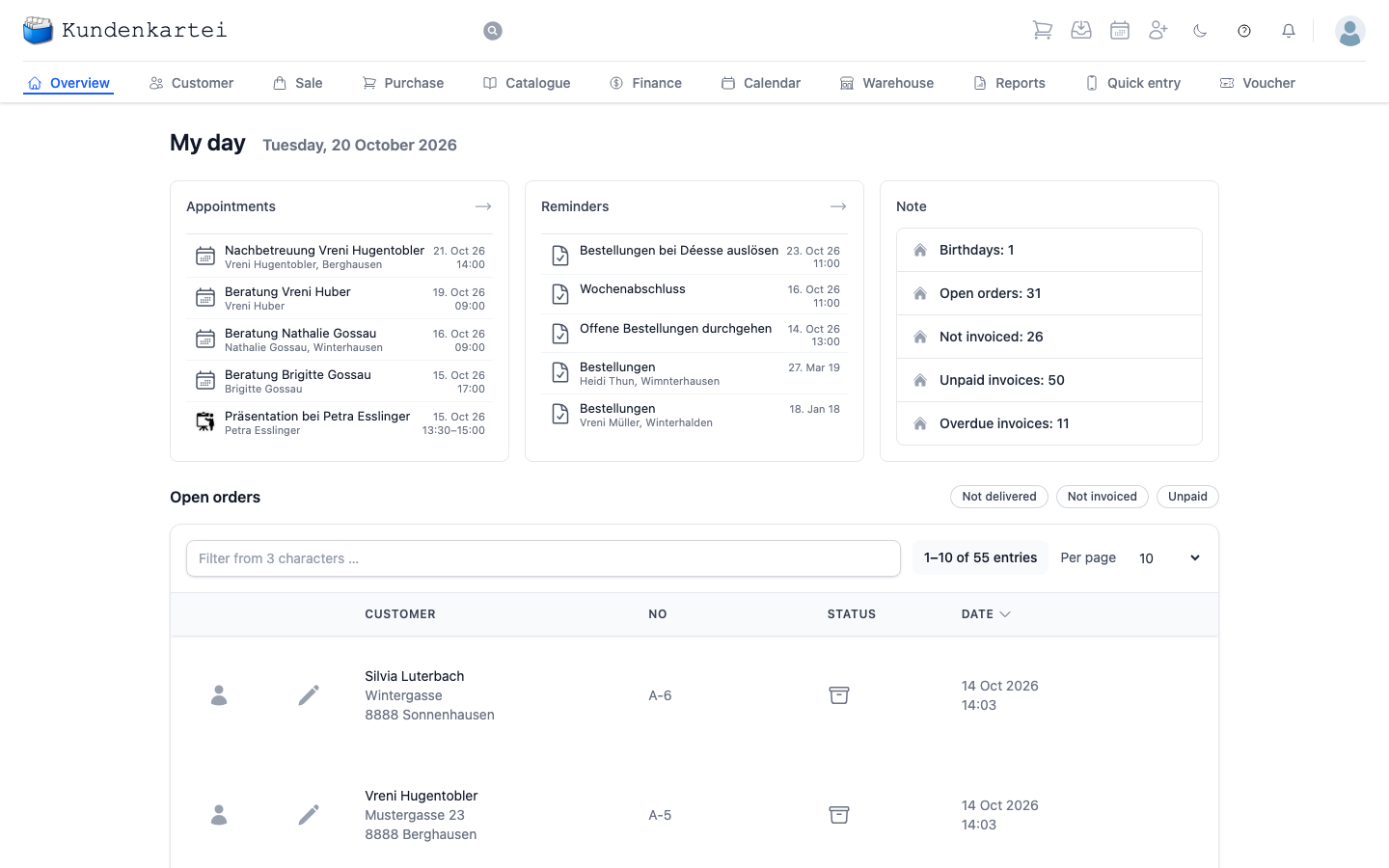
Overview is the page you land on after signing in. It answers a single question: what needs doing today?
My day
The current date sits at the top, with three cards below it.
Appointments shows up to five presentations and appointments from the calendar, the latest first. If nothing is scheduled, the card says so — “No entries” is an answer, not a fault. Clicking an entry opens it; the arrow at the top right takes you into the calendar.
Reminders shows up to five tasks from the calendar: what it concerns, who it concerns, and the date. The arrow leads to the full list in the calendar's Task tab.
Note is the figures card. Five lines, each an open matter:
| Line | What it counts |
|---|---|
| Birthdays | customers whose birthday is today or in the next two weeks |
| Open orders | not yet delivered, or only partly |
| Not invoiced | not yet invoiced, or only partly |
| Unpaid invoices | not yet paid |
| Overdue invoices | unpaid and past the deadline |
Each line is a link to the matching list: birthdays to the calendar, open and not invoiced orders to Sale, unpaid and overdue invoices to Finance.
The last three lines follow the path of the money: invoice, get paid, send reminders. Overdue is always unpaid as well.
Open orders
Below the cards are the open orders, the most recently changed first. Completed orders do not appear. Each row gives the customer with her address, the order number, the status and the time.
Three filters above the list narrow it down:
| Filter | Shows orders that … |
|---|---|
| Not delivered | still have all or part left to deliver |
| Not invoiced | still have all or part left to invoice |
| Unpaid | have not been paid, or only partly |
If you choose two filters, you see every order to which either applies. Without a filter you see all open orders. If there are more than ten, you page on at the bottom.
Clicking the row opens the order, as does the pencil symbol. The person symbol takes you to the customer.
The header
The header stays with you throughout the application, not just here.
It has two rows. On the left of the top row is the logo, which brings you back here from anywhere.
The second row holds the modules: Overview, Customer, Sale, Purchase, Catalogue, Finance, Calendar, Warehouse, Reports, Quick entry and Voucher. Which of them you see depends on your licence — if one is missing, it has not been enabled. On a narrow screen the modules fold into a menu, which you open with the symbol at the top left.
In the middle of the top row is the search. It finds customers and products from three characters on, even without accents: “durmic” finds “Durmić”. You open it with the magnifying glass or from anywhere with the keyboard:
| System | Shortcut |
|---|---|
| macOS | Cmd + K |
| Windows, Linux | Ctrl + K |
Esc closes the search again.
On the right are the quick actions. They start the four things people begin most often: record an order, take in a return, set an appointment, add a customer. Beside them you switch between the light and dark appearance, open the help and see your notifications. Your own menu with the settings and logging out sits at the far right.
Where to begin
Overview is a starting point, not a workplace. It shows what is pending and sends you on.
- Read Note — the figures tell you where the day belongs
- Check Appointments so nothing catches you out
- Work through Reminders while your head is clear
- Move to the module where the work lies
Next
- Customer — searching for, adding and maintaining customers
- Sale — orders and assignments
- Finance — invoices and payments
- From order to invoice — the whole path in one piece