Finances
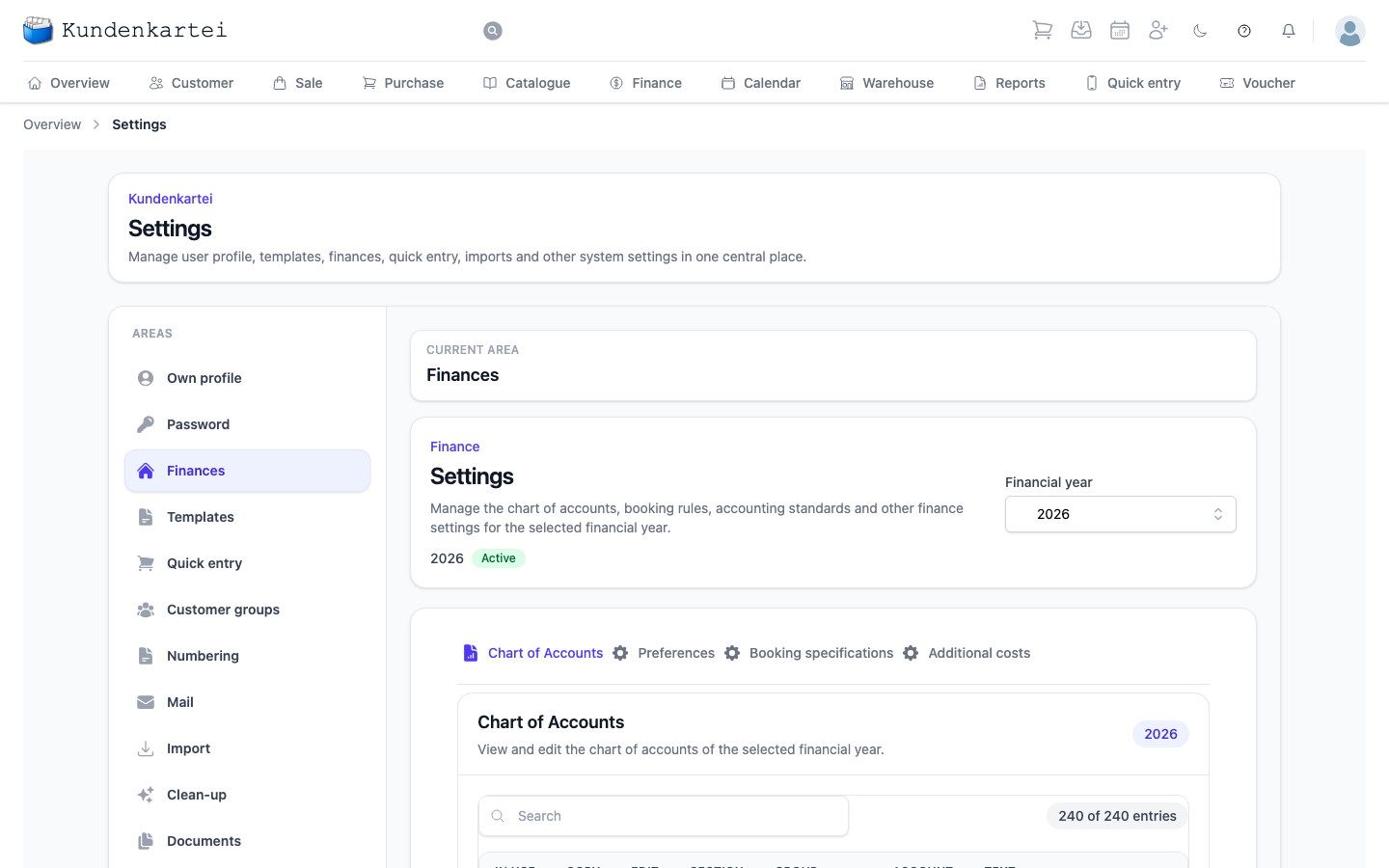
This is where you set up how entries are booked — per financial year. Since September 2026 all of it lives here: bookkeeping itself now shows bookings, not their setup.
The financial year at the top
At the top right you choose the financial year. Everything on this page belongs to that choice — a different year has a different chart of accounts, different invoice numbers, different rules.
Beside it stands its state:
| Badge | What it means |
|---|---|
| Active | entries are booked to this year |
| Inactive | it exists, but nothing is booked to it |
| Locked | it accepts no more changes — except unlocking |
Locked and not active means: the year is closed and is view only. The page tells you so above the buttons.
At most one year may be active. If you switch a year to active while another is active, the page names the other year: “It will be deactivated when you save.” If several years are still active from earlier times, the page says that too and names the years concerned.
A locked year leaves exactly one control open: the lock switch. A lock set by mistake is therefore not final — release it, save, and the year can be changed again. Unlocking and changing are two steps: first unlock and save, then change and save again.
Two fields are for viewing only
The Start date and the assigned standard chart of accounts can be viewed here but not changed. The Kundenkartei says so at the field itself, so that you do not enter something that disappears when you save.
The four tabs
| Tab | What you set up there |
|---|---|
| Chart of Accounts | which accounts this year knows at all |
| Preferences | status (active, locked), name, period, rounding and chart of accounts of the year — with the Invoice numbers card below |
| Booking specifications | for each entry, the accounts for full and reduced VAT — currently view only |
| Additional costs | cost types such as postage that are charged alongside the articles — currently view only |
Two tabs do not save yet
Booking specifications and Additional costs show what has been set up but cannot currently be saved. The page says so itself, and the Save button is locked there. Whatever you change is gone as soon as you leave the page.
The invoice numbers
They sit as a second card in the Preferences tab. There you determine:
- the form — Year and number or Consecutive number
- the next number an invoice will receive — if the number range already exists, you see below the field which number the next invoice will receive with it
Two things the Kundenkartei insists on:
- The next number may not fall below the current position. Issuing a number twice is not an option.
- Once numbers have been issued from this range, a change needs a reason of at least ten characters. If a gap arises, it appears in the Gap report – together with your reason.
If a year has no number range yet, it is created with the first save. This lets you set the first number before the first invoice arises — for instance when you switch from another program.
Below the form is the Gap report: whether numbers are missing from the number range, and which. If you have taken over number ranges from your previous system, they appear as Migrated number series for viewing; no more numbers are issued from them.
The same invoice numbers also appear under Numbering, there together with the other number ranges. Both places change the same numbers; for invoices this card is the simpler route.
Where to begin
- Setting up a new year — the Preferences tab, then Chart of Accounts
- Determining invoice numbers — the Preferences tab, card Invoice numbers
- Closing a year — set the lock
- Locked by mistake? Release the lock and save
This area is one of sixteen under Settings. How they fit together and in which order to set them up is on the Settings page.