📱 Kundenkartei Go
With Kundenkartei Go you work on mobile in the browser of your smartphone or tablet. Record orders, maintain customer data and keep an eye on appointments and tasks – on the go and at any time.
✅ Requirements
- A valid login (the same credentials as in the web application)
- Permissions for the areas you need (customers, catalogue, calendar, …)
- An internet connection – Go loads and saves everything directly in the cloud
Tip: put Kundenkartei Go on your home screen so you can start it like an app – explained step by step under Save as an app.
🧭 Screen layout
The screen is divided into three areas:
- Header at the top: on the left the logo, which takes you back to the catalogue. On the right the shopping cart leading to the order list, with the number of lines – on a wider screen the name of the selected customer appears beside it. Then the bell for Info, the moon or sun symbol for dark or light mode, and your profile picture with Settings and Log out.
- Middle: the content of the selected area
- Footer at the bottom: the four areas Catalogue, Customer, Calendar and Assignment
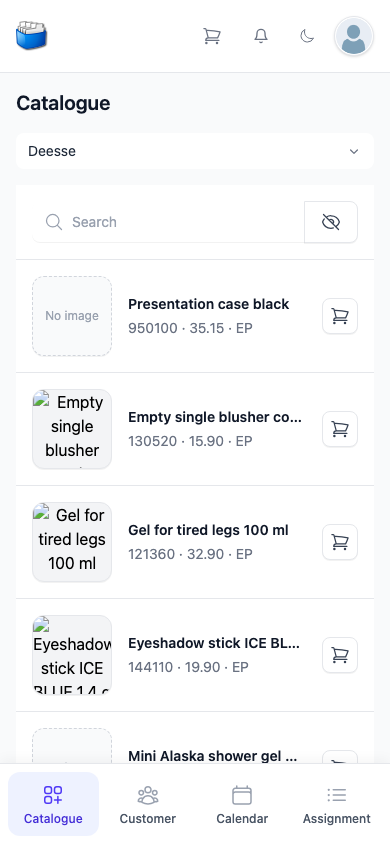
Note: tapping an area in the footer changes the content in the middle. After signing in you start in the catalogue.
🗂️ Areas at a glance
🛍️ Catalogue
- Two catalogues: Deesse and Own Products.
- Search from three characters by article number or description; one tap puts an article into the order list.
- More under Catalogue.
👥 Customer
- List of all customers and companies with search, detail view and the New button.
- From the customer’s page you take her into the order list with Add to cart.
- More under Customers.
📅 Calendar
- The Agenda and Task lists.
- Record new tasks, presentations, appointments and time tracking; view and change existing ones.
- More under Calendar.
🧾 Assignment
- The Sale list with your orders – filter, page, open.
- Create a delivery or an invoice from the order.
- More under Assignment.
🛒 Order list
- The shopping cart: choose the customer, set quantities and additional costs, check the delivery date, Place order.
- Reached via the shopping cart in the header.
- More under Order list.
⚙️ Settings
- Account, Logs and Language – via your profile picture at the top right.
- More under Settings.
⚡ Quick entry: an order on the go
- In the catalogue, add the articles to the order list with the shopping cart
- Open the order list and choose the customer
- Check quantities, additional costs and delivery date
- Place order – done
How each step works in detail is explained under Order list.
✅ Best practices
- Before the appointment, briefly check whether the customer has already been recorded – otherwise add her with New.
- Complete orders right after the conversation, while everything is in front of you.
- Keep important points about the customer in the Short notes.
❓ Frequently asked questions (FAQ)
I cannot log in – what should I do?
- Check the credentials, mind upper and lower case.
- If it still does not work, contact support.
The data does not look up to date.
- Check the connection (Wi‑Fi/mobile network) and reload the page.
The view is sluggish or stutters.
- Close browser tabs, restart the device.
- Narrow down long lists with the search or the filter.
Can I work without internet?
- No. Go fetches customers, articles and appointments from the cloud every time and saves there too; without a connection you can neither load nor save.