🚀 First Steps – your first order in 3 steps
With Kundenkartei you can record orders both on the go with Kundenkartei Go (mobile) and at your computer with Kundenkartei Web. This page walks you through the first run in just a few minutes.
Note for existing users of the local Kundenkartei: here you will find out how to transfer your data to the cloud:
Data migration
Go is designed for mobile use on a smartphone. Make the most of meeting customers in person by recording orders on the spot and, if they wish, sending them an order confirmation by e‑mail.
You will find more details on Go in the GO tutorial.
0) Login
Open the browser on your smartphone and go to:
go.kundenkartei.app
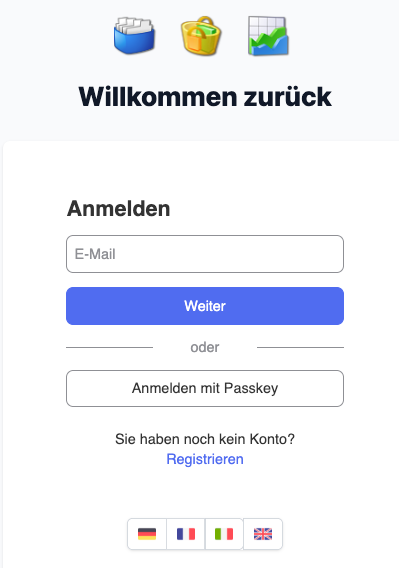
- User name: your personal user name (set during registration)
- Password: your personal password (chosen during registration)
After “Log in”, the product catalogue opens.
1) Select products
You will see the current product catalogue. Select products by tapping the shopping cart icon in the row.
Tapping the item name opens the detail view (further information/variants).
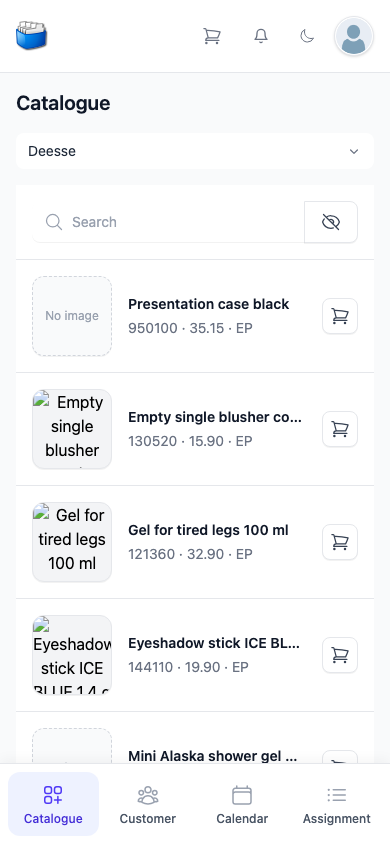
Once you are done, tap the shopping cart icon in the top bar. It shows the number of products in the cart.
2) Check the shopping cart
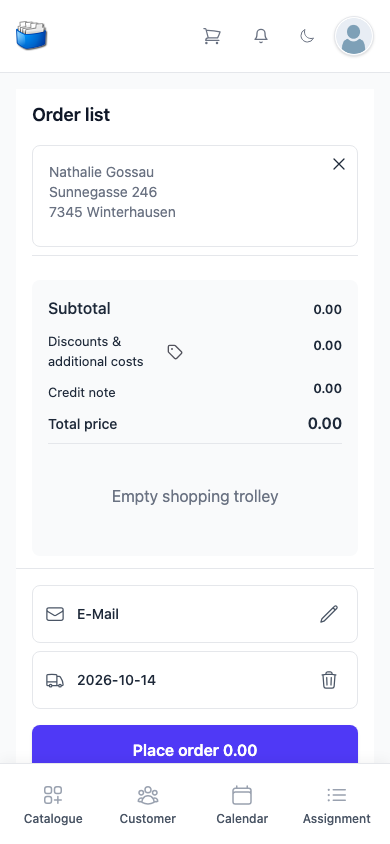
Check the selected products (quantities, a note or a discount if needed) and tap “Checkout” at the end.
3) Complete the order
- Search for and select a customer, or create a new one
- Optionally enable the e‑mail dispatch (“Send mail” checkbox) and check the address
- Set the delivery date and complete with “Place order”
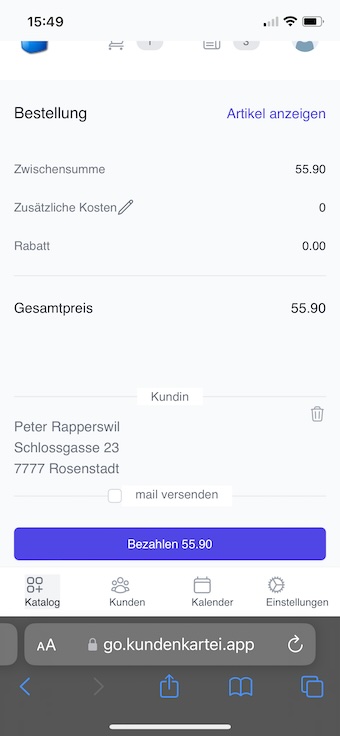
Done – the order is recorded and synchronised with the cloud.
Tip: mark frequently ordered items as favourites in the web app. That makes them quicker to find in Go.
✅ Best practices for getting started
- Before a customer appointment, briefly open the most important customers/items – the history helps you find them again quickly.
- Enable the e‑mail dispatch for orders so a confirmation goes out immediately.
- Use consistent spelling for names/addresses to avoid duplicates.
❓ Frequently asked questions (FAQ)
- I cannot log in: check your credentials; reset your password if necessary.
- Products do not appear: reload the view or check your internet connection.
- The mail does not arrive: check the e‑mail address; check the spam/junk folder if necessary.