Managing stock movements
Stock management documents all movements of items – from goods receipt through deliveries to returns. Stock postings are made automatically when a delivery note is created or when a received delivery is confirmed. Manual corrections are also possible.
📦 Introduction to stock management
- Management of items with inventory tracking
- Definition of minimum quantities for automatic requirement detection
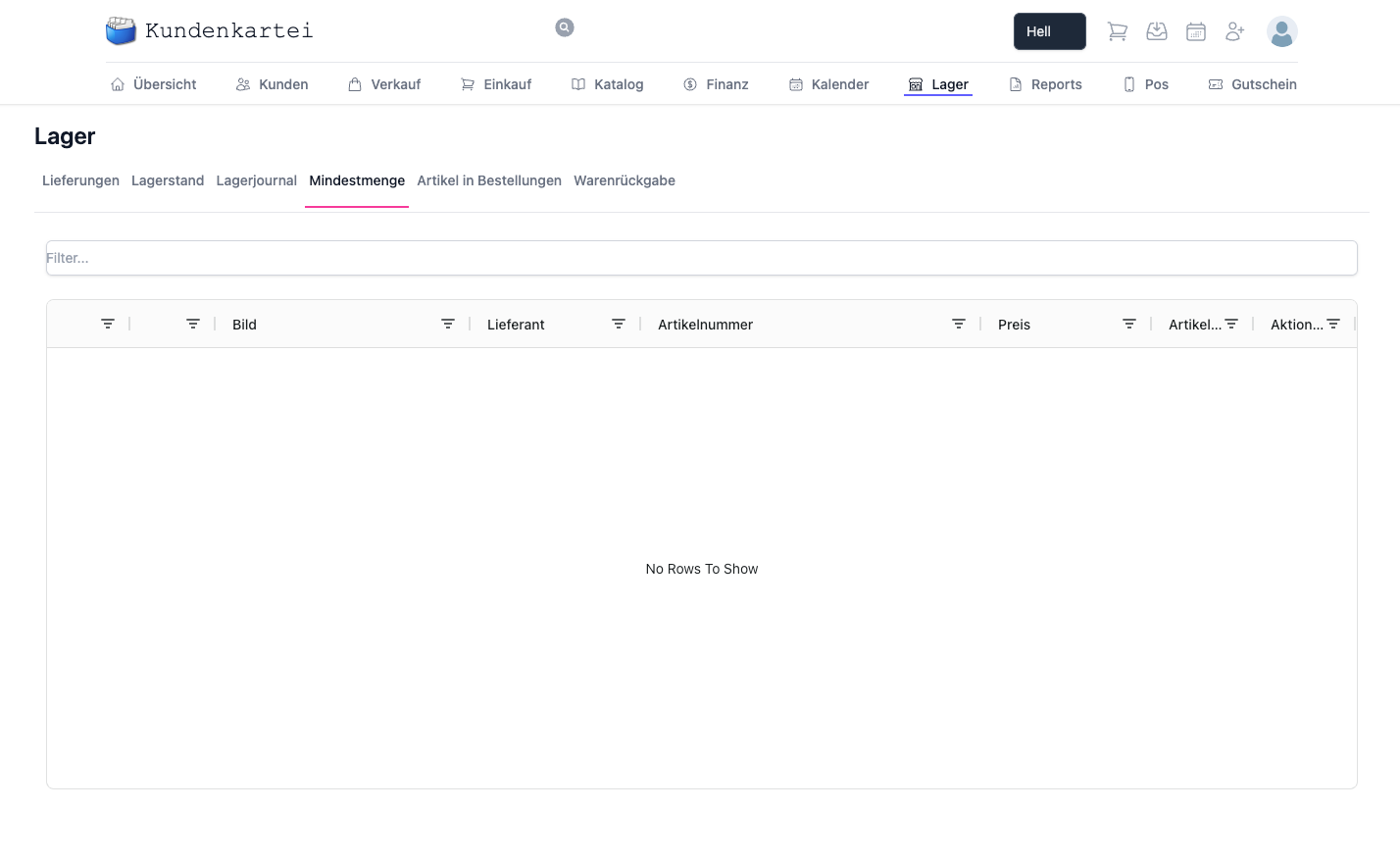
→ You define the minimum quantity in the item’s “Minimum quantity” tab.
Tip: set realistic minimum quantities and take delivery times into account to avoid bottlenecks.
📥 Goods receipts and 📤 goods issues
- Receipts arise, for example, from purchases or return deliveries
- Issues arise from deliveries to customers or from own use
In the delivery overview you see all the relevant postings.
Clicking a row opens the associated order:
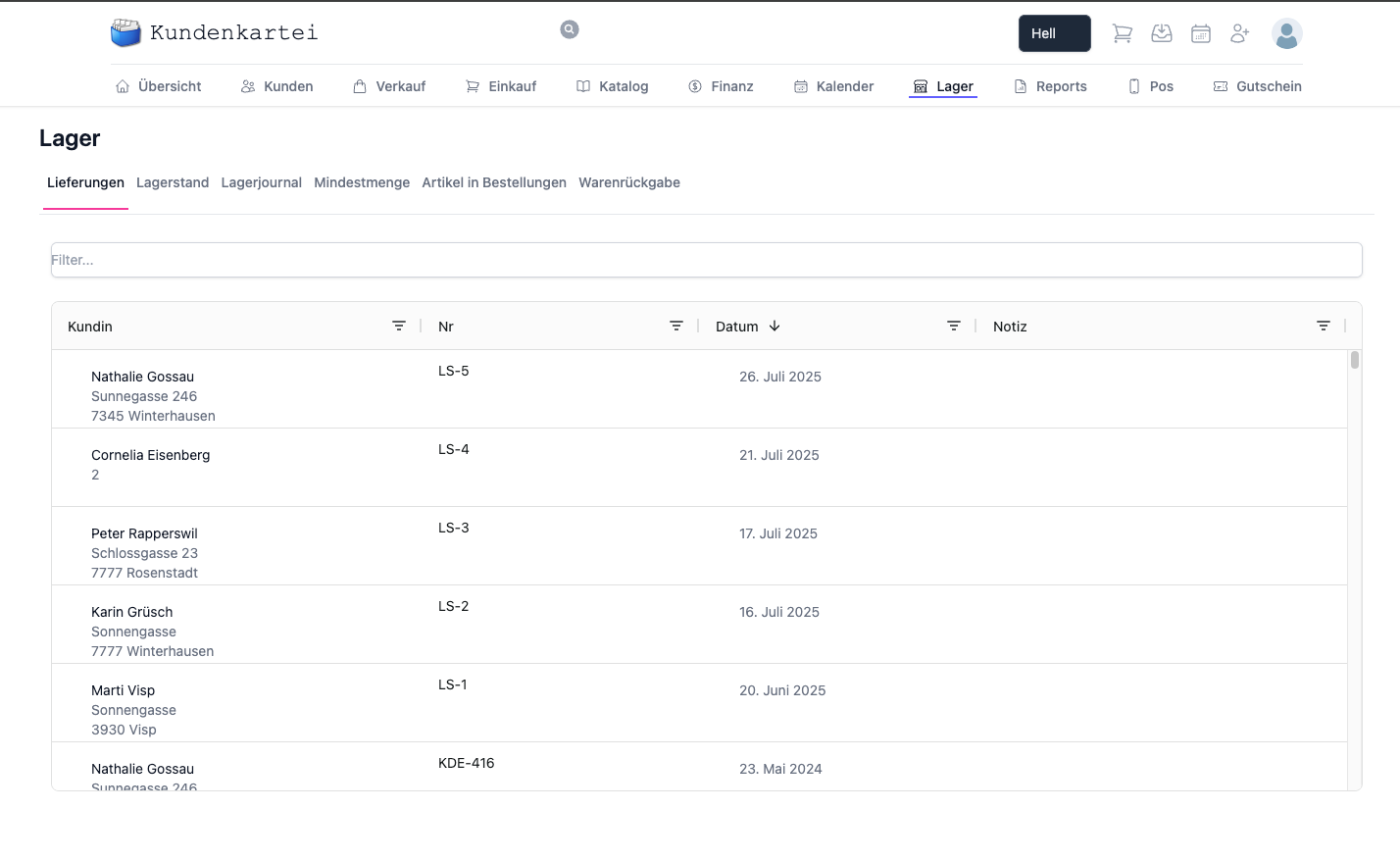
Note: partial deliveries/goods receipts are possible. Open remaining quantities stay visible in the overview.
📊 Stock overview and valuation
In the “Stock level” tab you get a complete overview of:
- Receipts and issues per item
- The current stock level
- The line details
Click a row to open a pop-up with detailed information about the item:
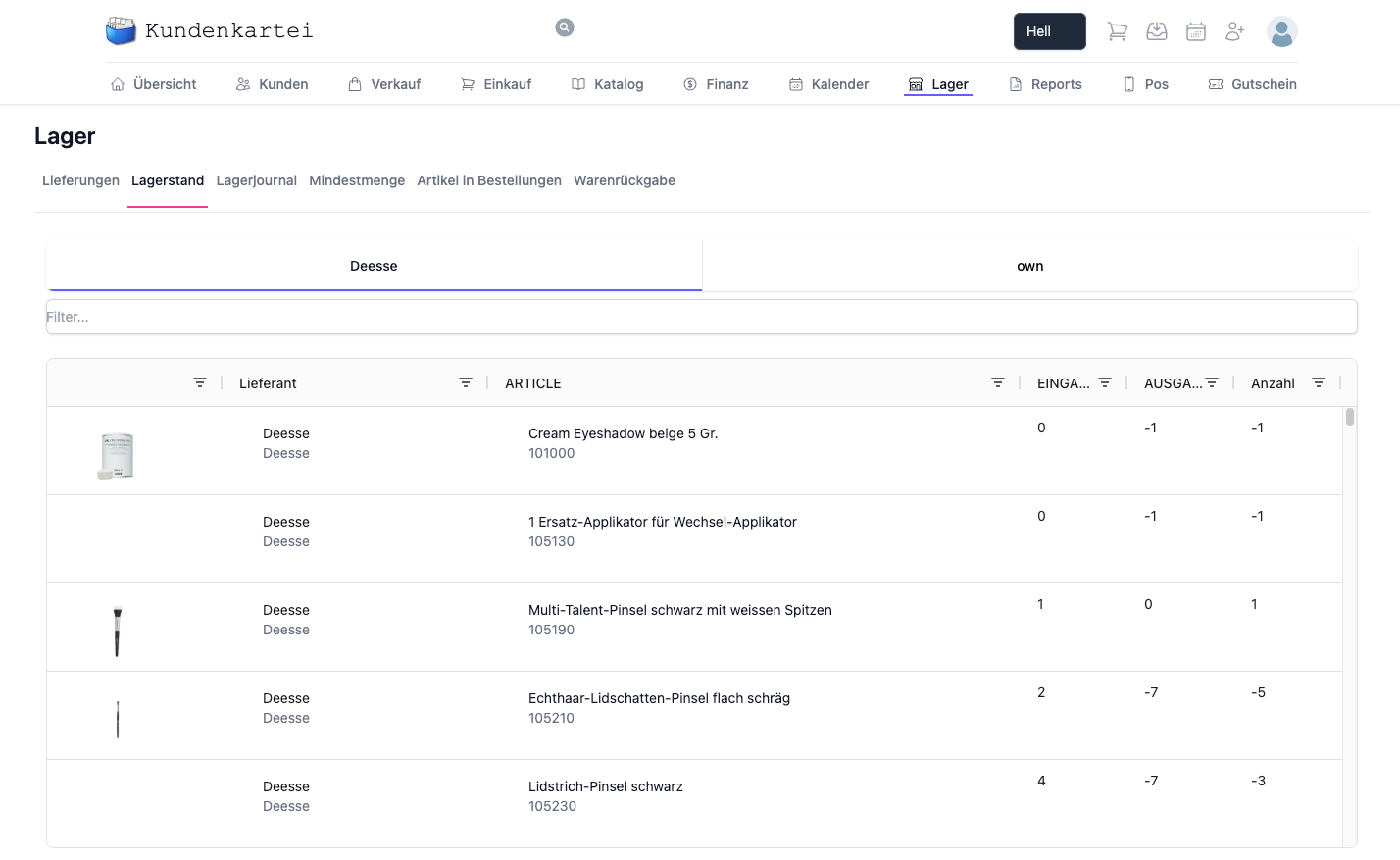
Best practice: use the columns for filtering/searching (e.g. by item, storage location, batch) to check stock levels in a targeted way.
📖 Documenting stock movements
Stock movements are either:
- generated automatically (e.g. on delivery, cancellation, goods receipt), or
- added manually (e.g. for corrections or stocktakes)
You will find all movements in the stock journal:
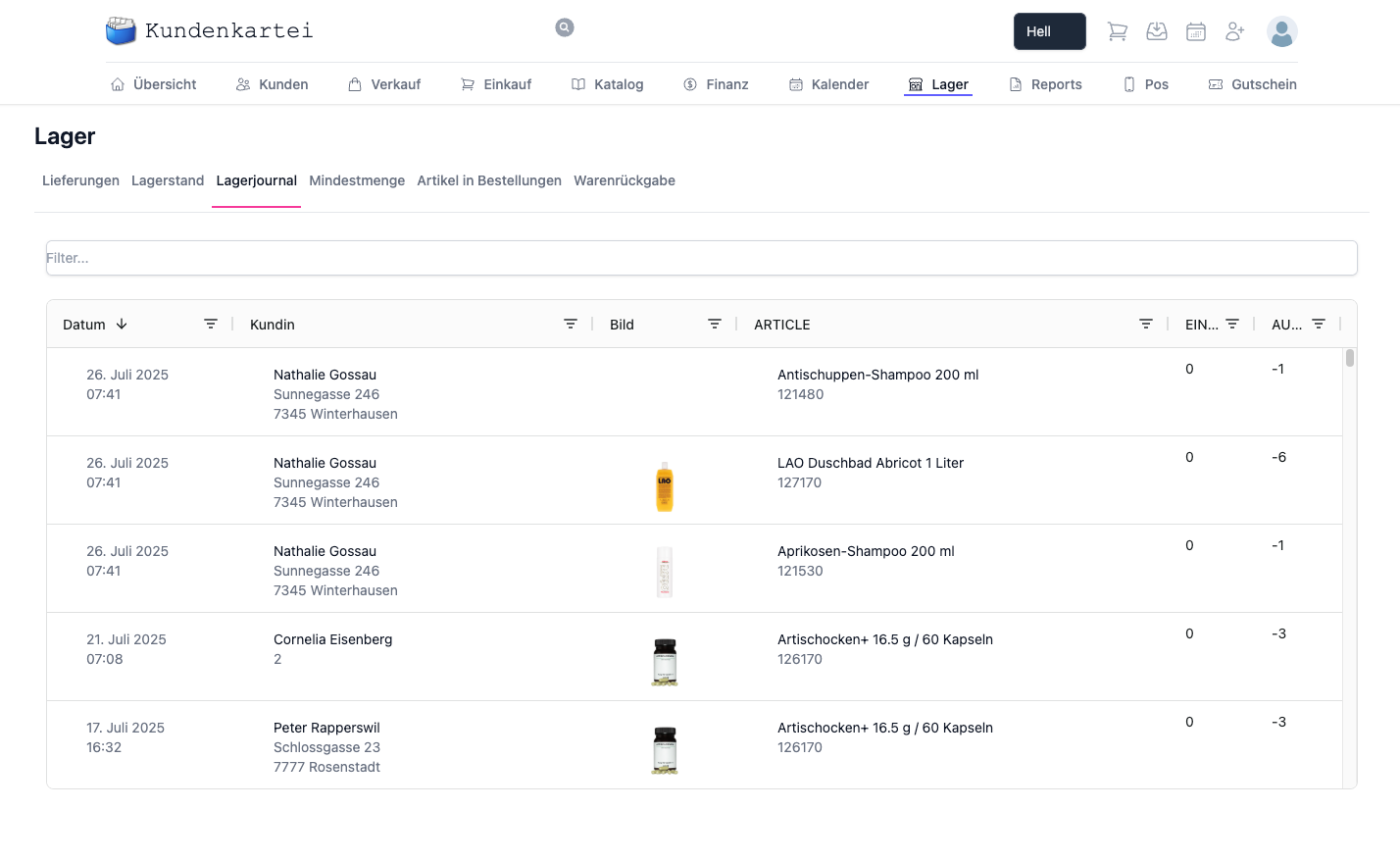
Clicking an entry takes you straight to the associated order.
Action and effect on stock
- Create a delivery note → the stock level is reduced by the delivered quantities
- Post a goods receipt → the stock level is increased by the quantities received
- Cancellation/return delivery → the stock level is reversed accordingly
Caution: always give a clear note as the reason for manual corrections (e.g. “Stocktake 2025, difference at storage location A”).
🔄 The returns process
The “Goods return” overview shows all returned items:
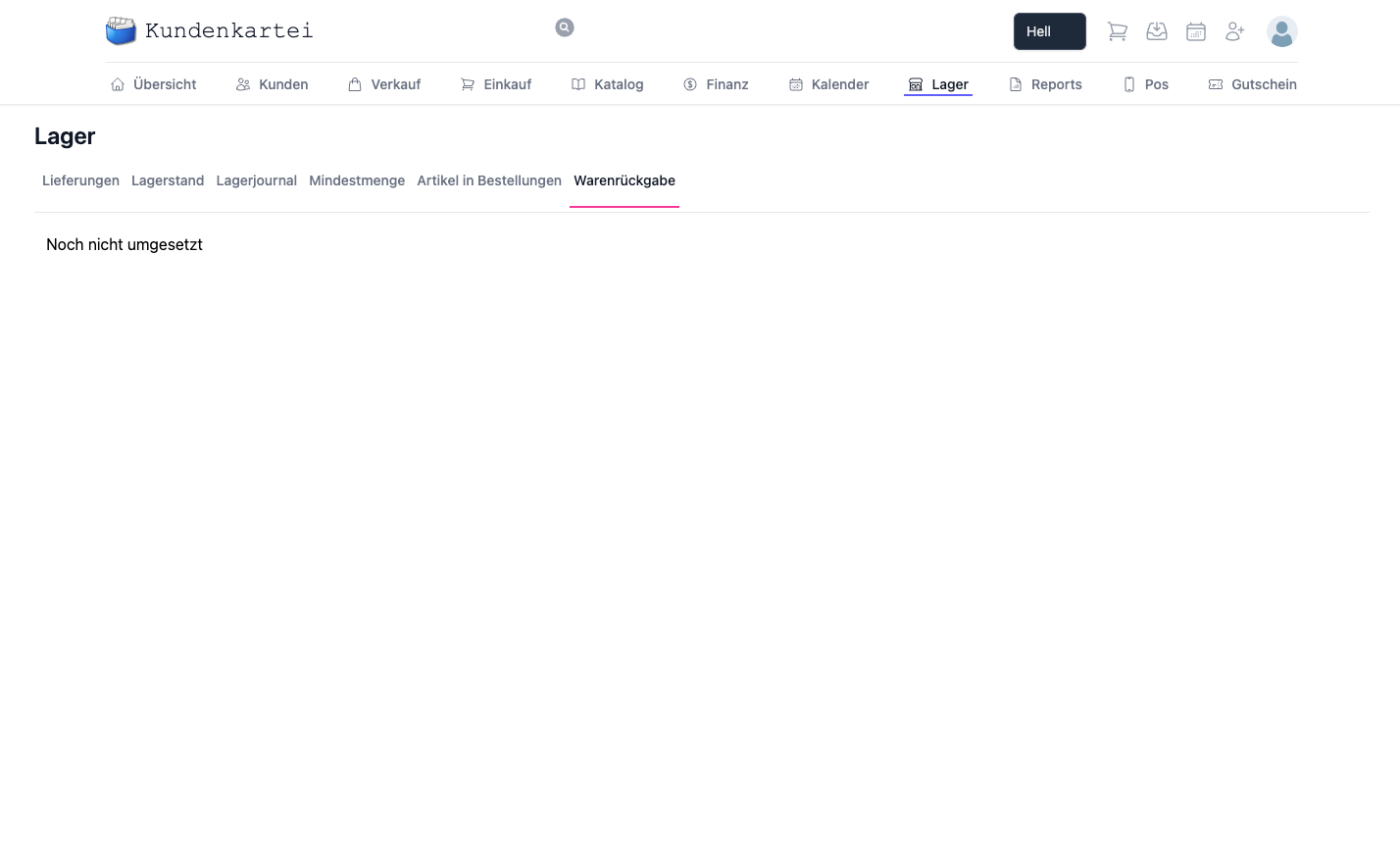
The functions at a glance:
- Reversal on cancellation: automatic stock correction
- Assignment to the original delivery
- Creation of credit notes
Recording a return
Record a return via the quick action New return in the header: first the customer, then the order. The form shows the delivered items and – since September 2026 – the previous returns for this order. An order may have several returns; per item, at most the delivered quantity can be taken back in total, and the form deducts what earlier returns have already taken back. Each return can be deleted individually from this list.
If the goods cannot be matched to a delivery, choose Return without delivery reference: no order, no quantity limit, the items come from the product search.
Every saved return books the goods back into stock as an inbound movement; the stock journal shows it with the source "Return". Deleting the return removes the booking as well.
Tip: record batch/serial numbers for returns to ensure traceability.
🧮 Stocktaking and stock correction
- Create counting lists and reconcile the stock levels
- Document difference postings automatically
- Optional: export for further processing
Recommendation: carry out at least one annual stocktake on a key date. Add permanent sample stocktakes for A items if needed.
✅ Best practices
- Use minimum stock levels and delivery times for automatic requirement detection
- Post partial deliveries promptly, so that availability is correct
- Document manual corrections in the stock journal in a traceable way
- Check “ordered but not yet delivered” regularly
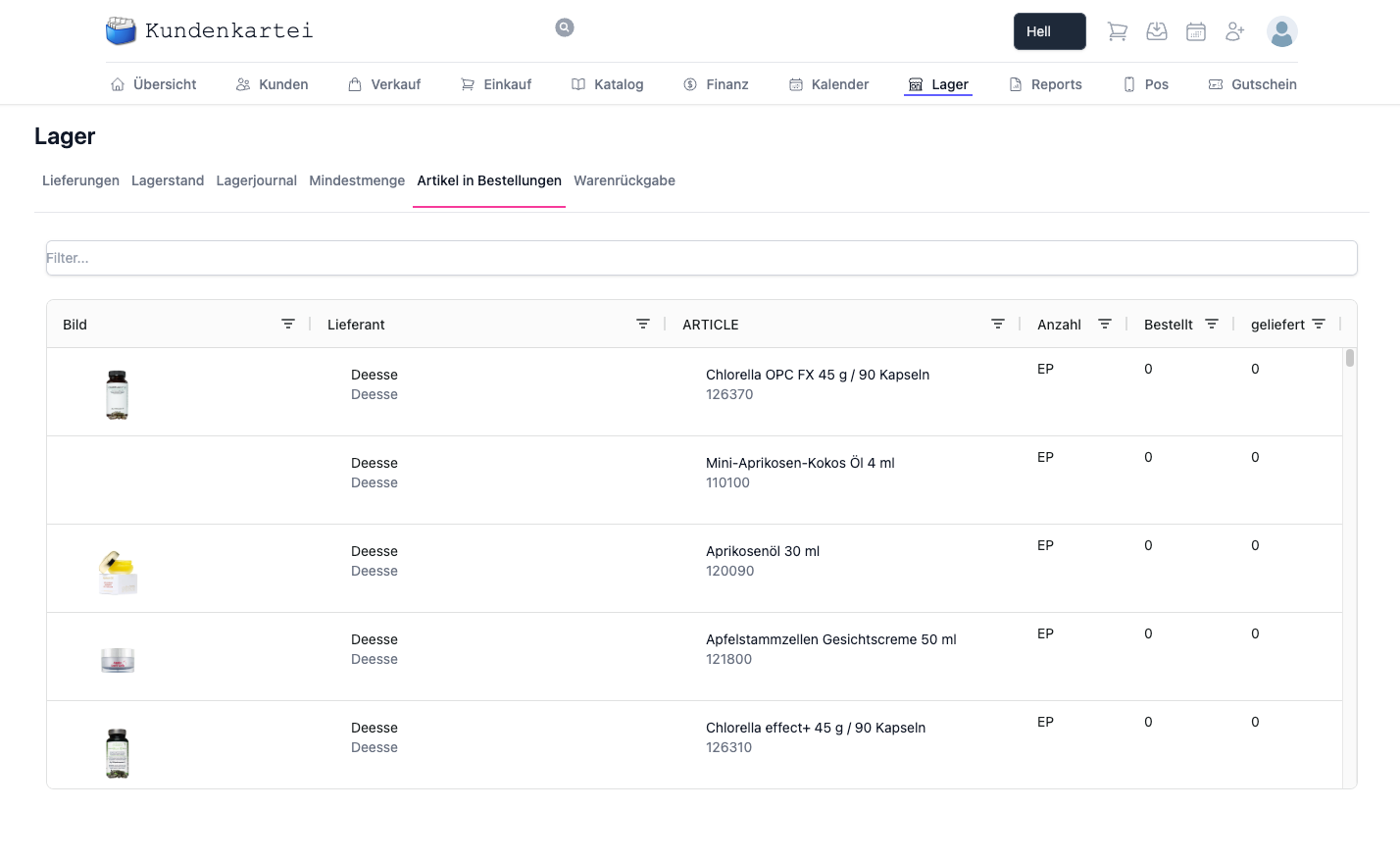
❓ Frequently asked questions (FAQ)
Why does my stock level not match reality?
- Check for outstanding goods receipts/deliveries (partial postings)
- Look for manual corrections in the stock journal
- Make a stocktake difference posting and document the reason
How do I post a return delivery correctly?
- Open the original delivery or order
- Record the returned quantity as a return
- Create a credit note if needed
Can I delete an incorrect stock posting?
- Recommended: a correction posting (contra entry) instead of deletion, to preserve traceability