Recording a booking
The trial balance is the central module for recording, correcting and analysing all financial postings in Kundenkartei Web. It allows both manual and automated entries.
DANGER
Important: the trial balance does NOT meet the statutory requirements (Swiss Code of Obligations, GeBüV). Use it as an aid and as the basis for exporting to your accounting software.
🔍 Overview and basics
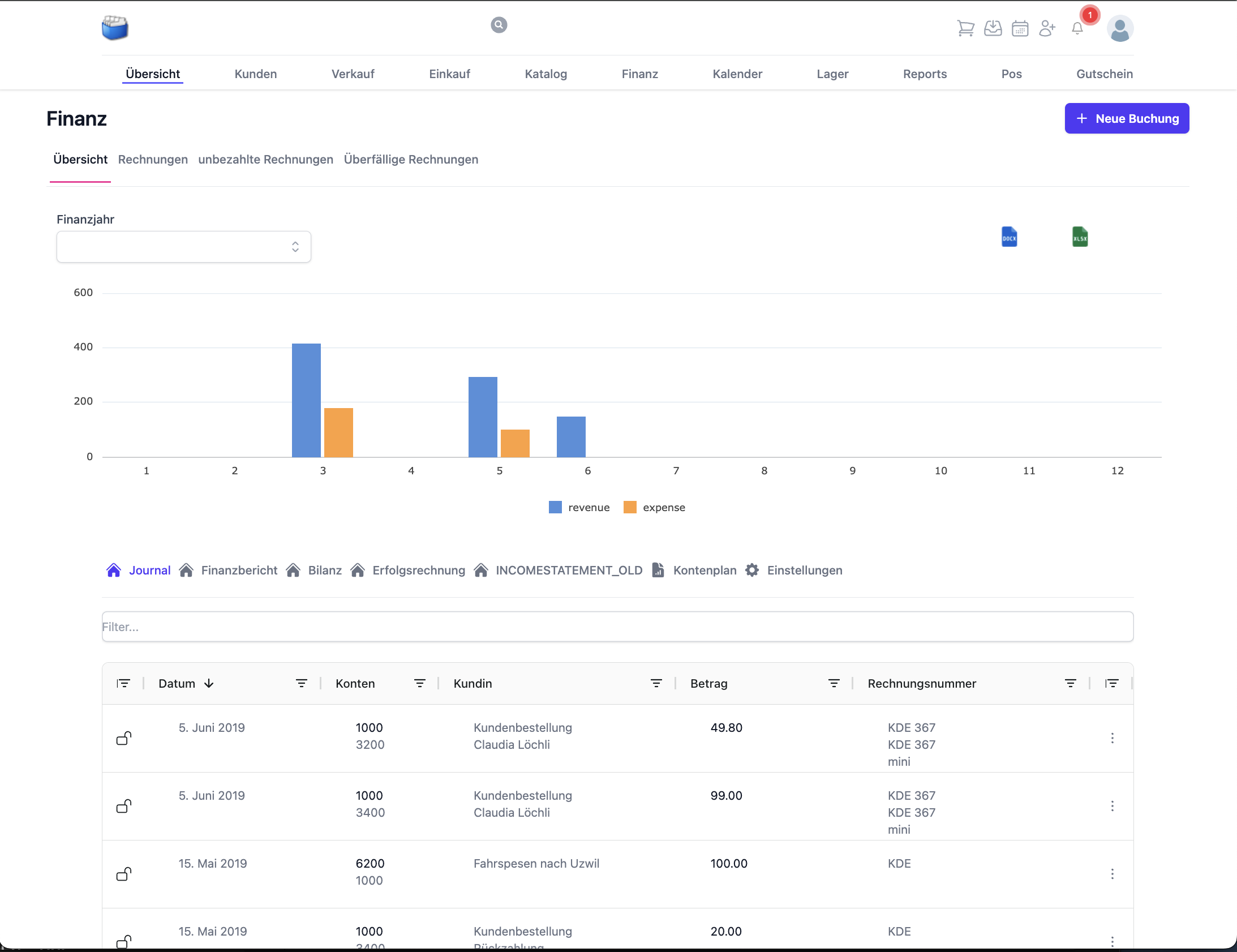
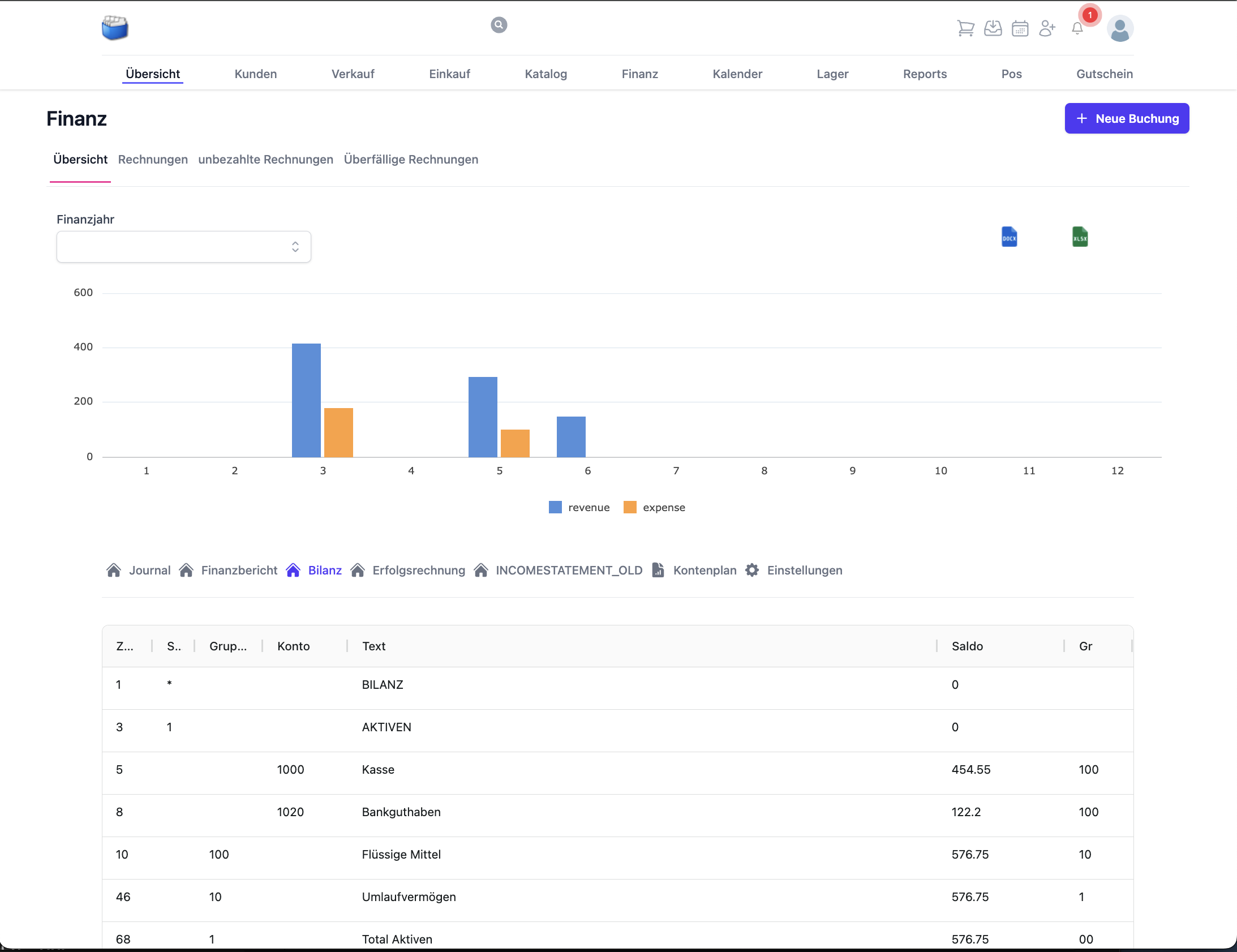
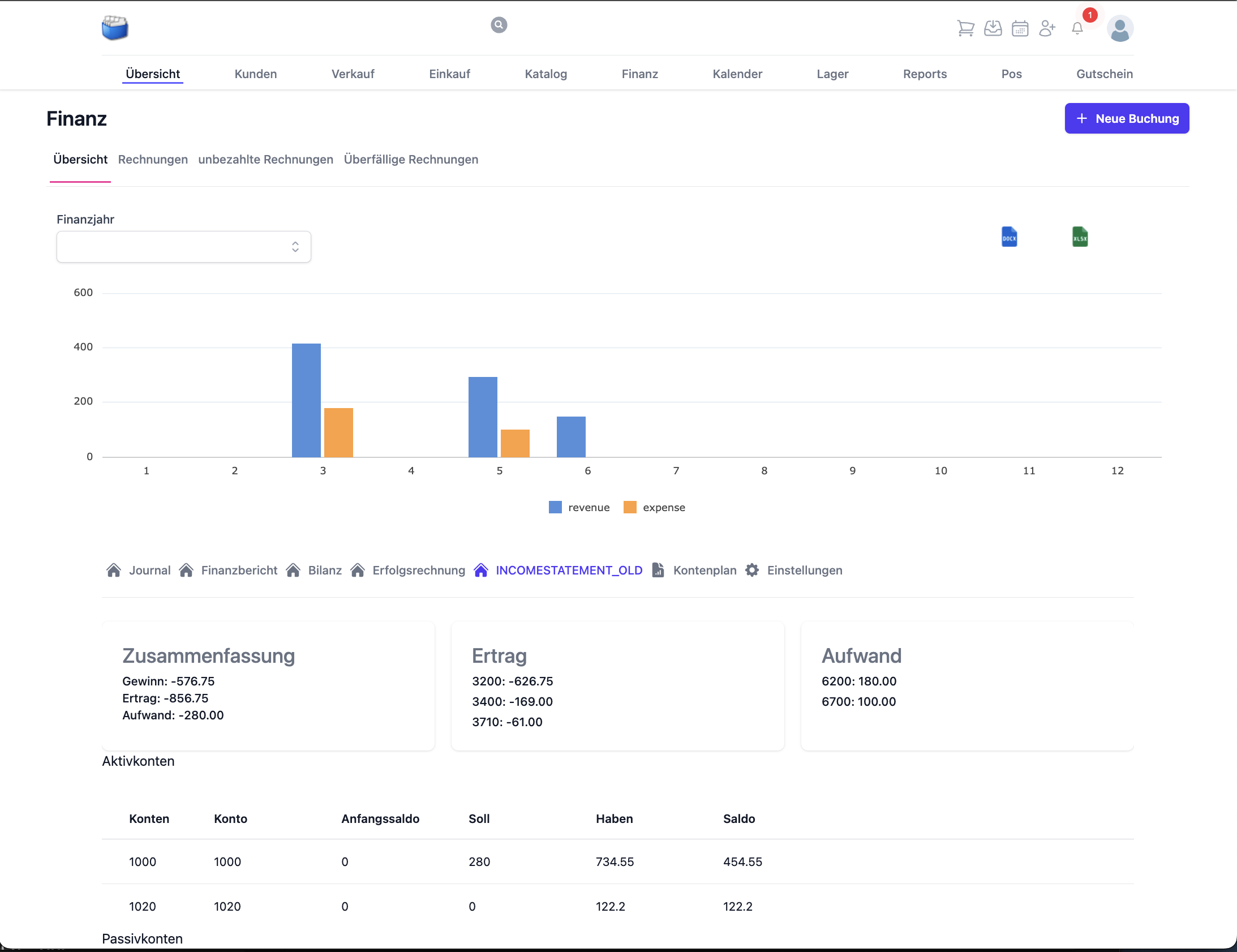
💡 What is the trial balance?
- A complete posting journal with filter and export functions
- Linked to the order, invoice and payment
- Presentation of the balance sheet, income statement, chart of accounts and trial balance
🧭 Navigation and search
- Go to: Accounting → Trial balance
- Filter by period, account, document number, status or text
- Save frequent filters as browser bookmarks
✍️ Recording a manual posting
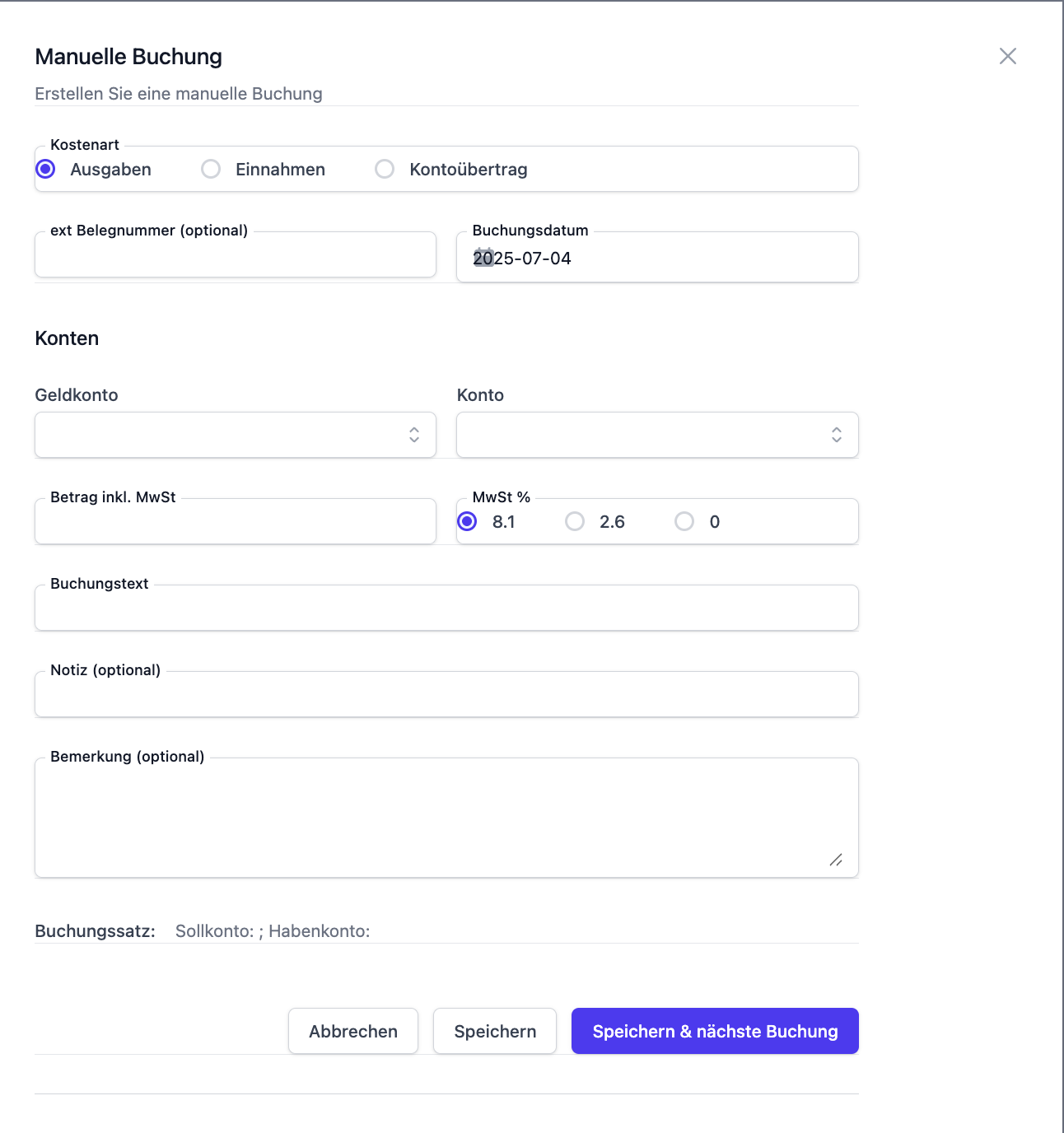
This is how to proceed:
- Click “New posting”.
- Enter:
- The posting date
- The debit and credit account
- The amount
- The document number and description
- Save the posting – it appears in the journal straight away.
Tip: use clear descriptions (e.g. “Invoice 2025-123 Müller GmbH”) for better traceability.
🔁 Error correction and reversal postings
Incorrect postings should not be deleted, but reversed:
- Select the incorrect posting.
- Click “Reverse”.
- The posting is written to the journal again with the opposite sign.
That keeps the accounting complete and audit-proof.
📊 Reporting and export
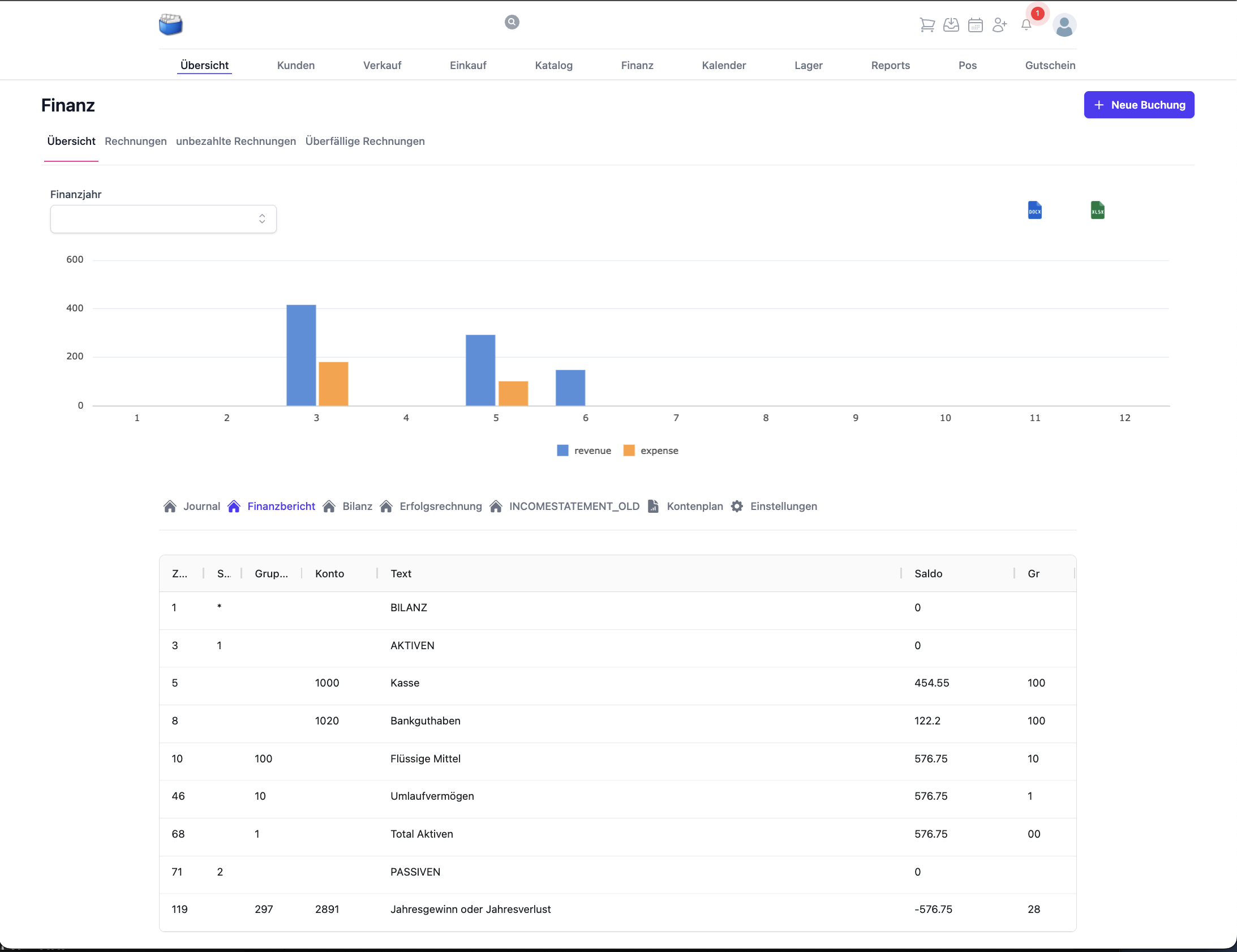
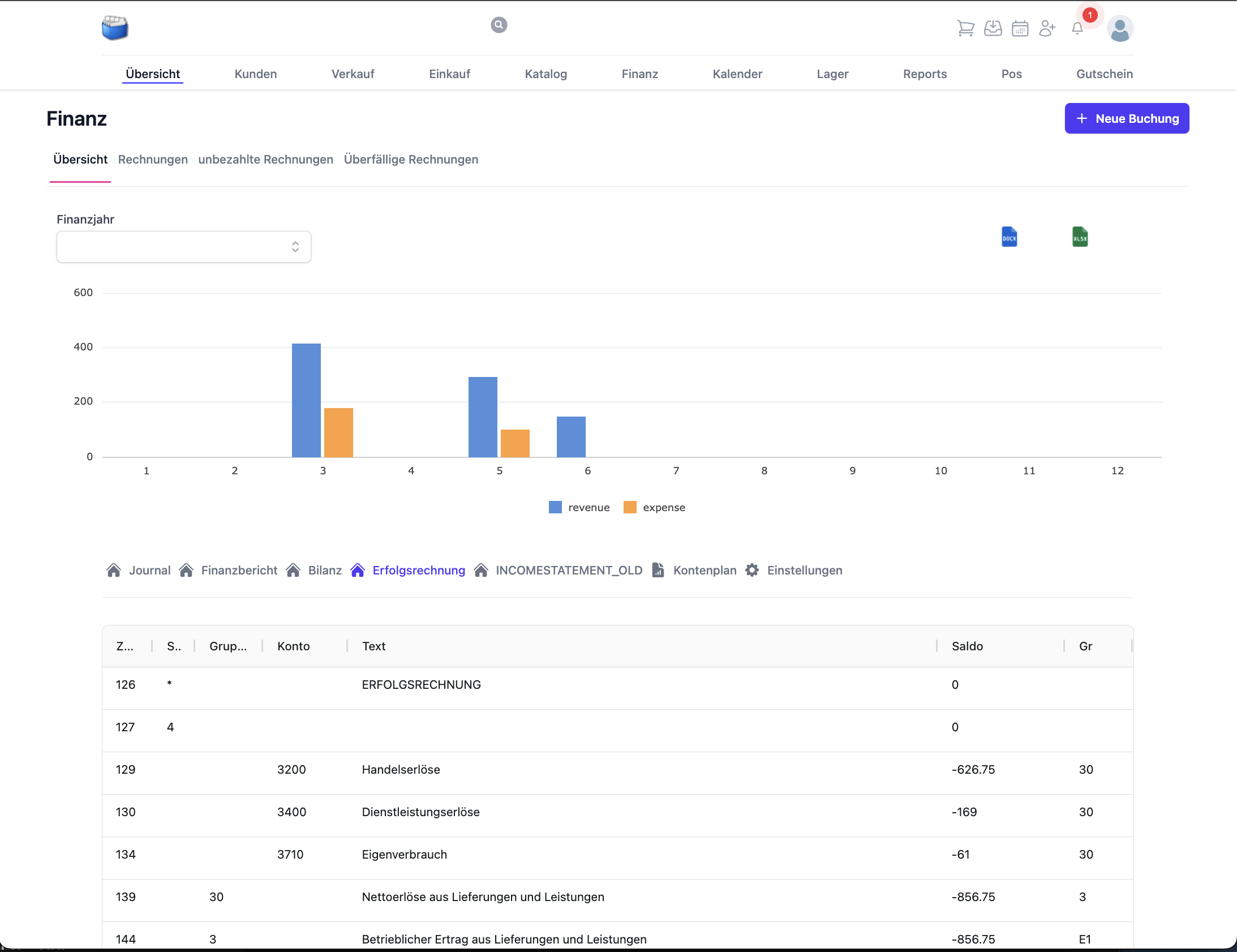
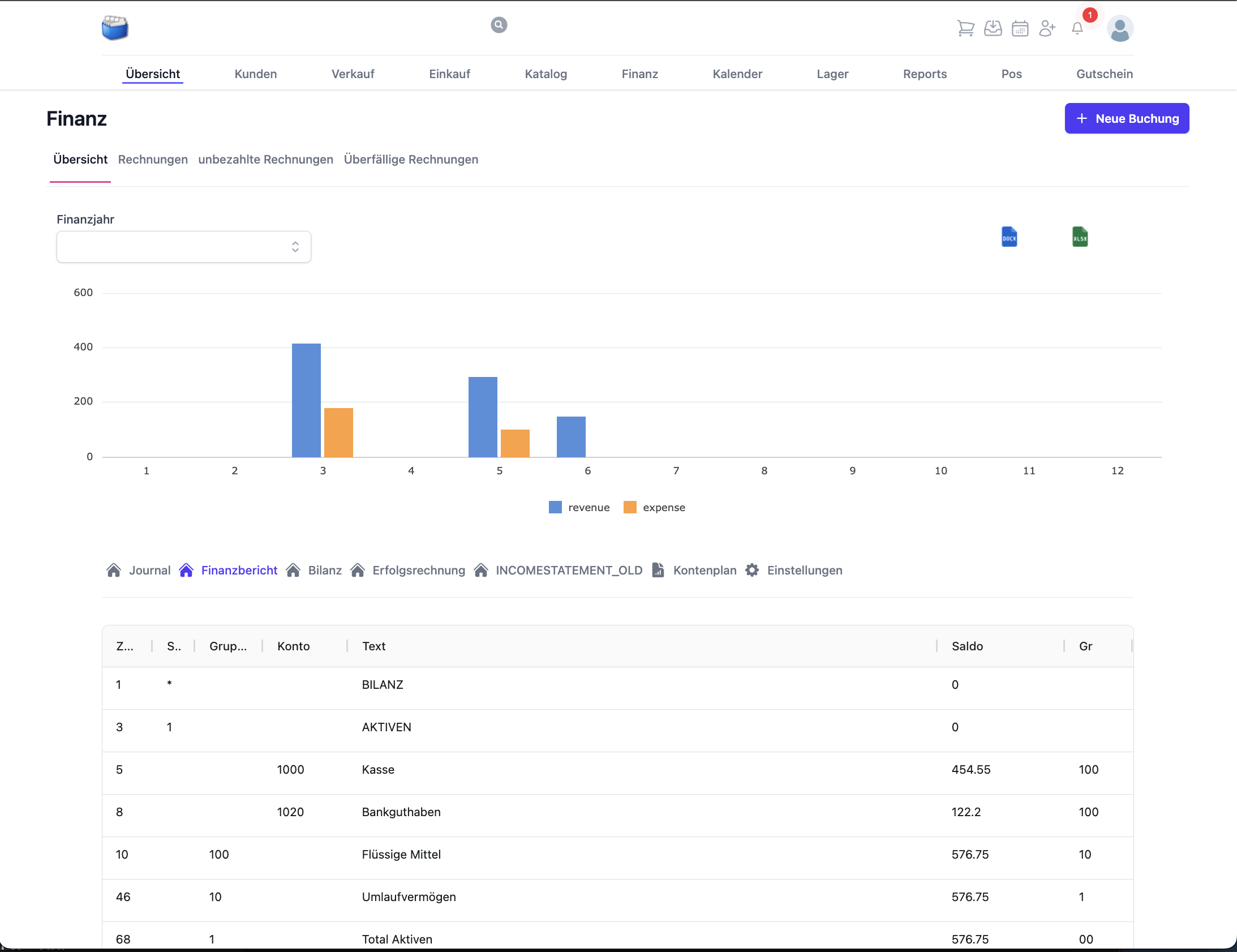
Available analyses:
- General ledger
- Balance sheet
- Income statement
- Trial balance
Export formats:
- CSV or Excel for further processing
- A filtered posting list for individual periods or accounts
Note: exports contain the filters that are currently active. Check the period/accounts before exporting.
💶 Settings
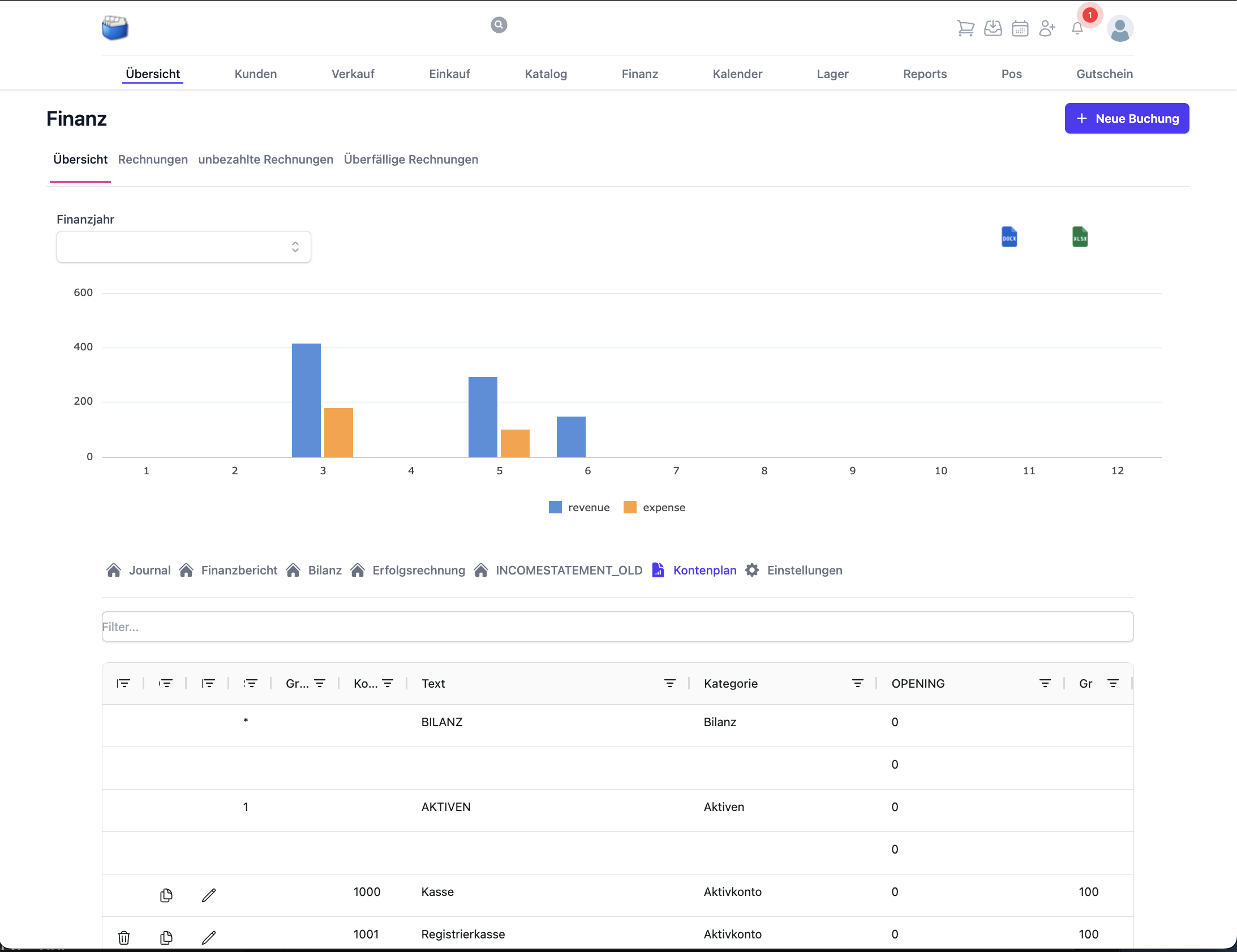
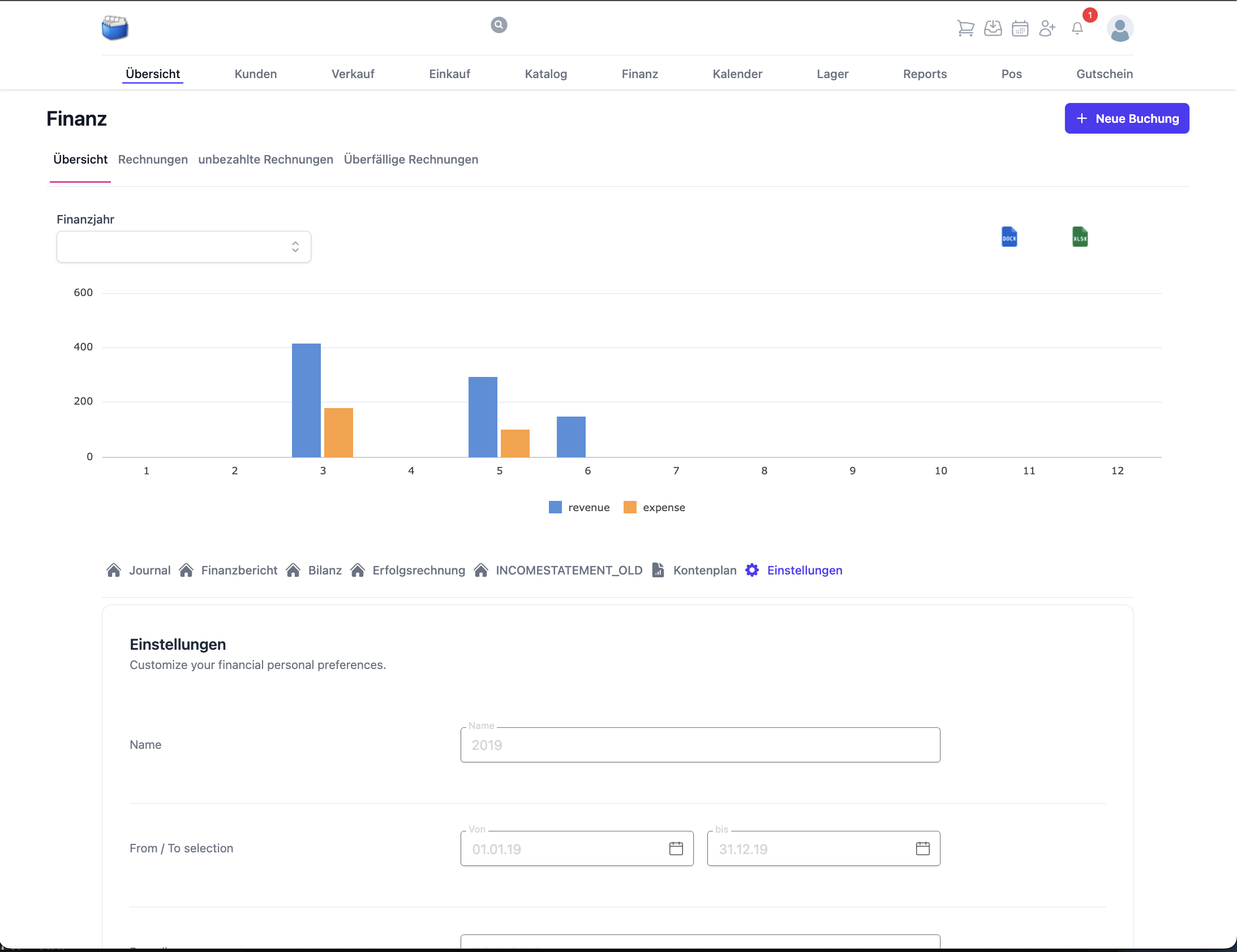
- Manage the chart of accounts (number range, designations)
- Check tax rates/VAT and assign them
- Define the default accounts for automatic postings (e.g. receivables, revenue, shipping)
Best practice: define the chart of accounts before productive use and only adjust it in a versioned way.
🧾 Open items and payments
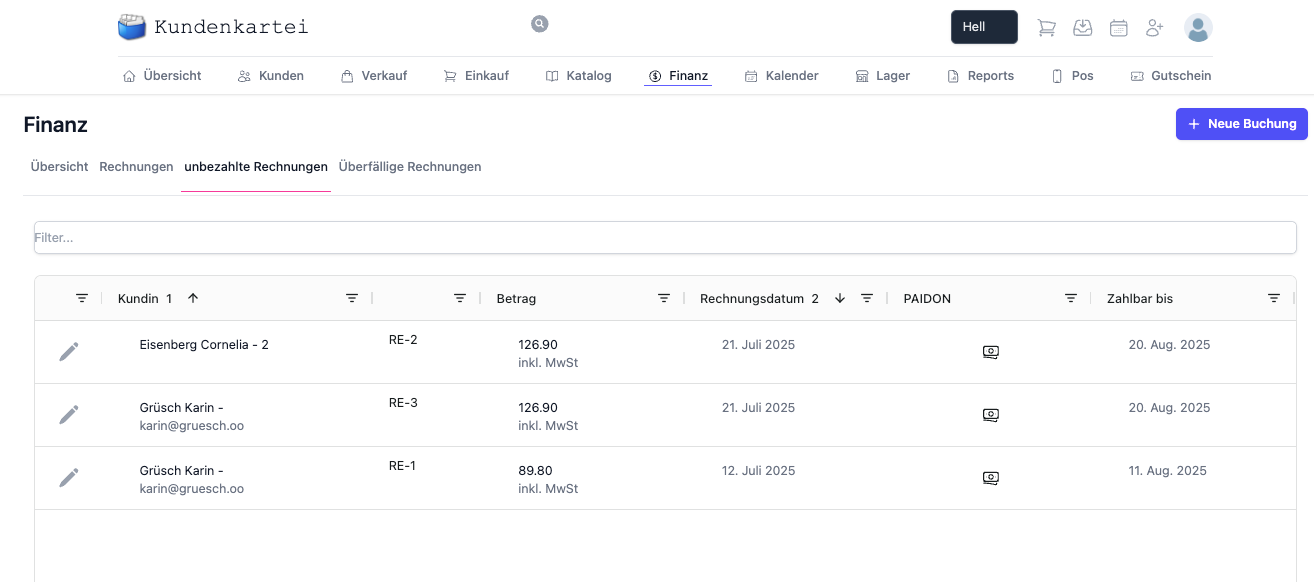
- Display of open items from invoices
- The link to incoming payments and the dunning process
- Reconciliation with Invoices and payments
Part payments are recorded as several payment transactions. The balance stays open until it is settled.
✅ Best practices
- No deletion of productive postings – use reversals or correction postings
- Use clear document references (invoice number, delivery note)
- Monthly routine: check the open items list, secure the exports
- Before closing a period, check the tax rates and default accounts
❓ Frequently asked questions (FAQ)
Why is my balance sheet/income statement wrong?
- Check the filters (period/accounts).
- Watch out for the correct sign in manual postings.
- Check whether all invoices have been posted.
Can I change a posting?
- Recommended: reverse the incorrect posting and create a new, correct one.
- Avoid direct changes, to preserve traceability.
How do I export only one period?
- Set the period filter in the journal and then start the export.
Where do I find unpaid invoices?
- In the trial balance under “Open items” or directly in the Invoices and payments module.