Managing the calendar
Goal: after these instructions you will have mastered all the calendar functions – from quick drag & drop of appointments to recurring reminders.
The calendar in Kundenkartei is the central tool for scheduling appointments, organising resources and automated reminders – both in the web version and on your smartphone (Kundenkartei Go).
1️⃣ Calendar views
::: tab Web (desktop / tablet)
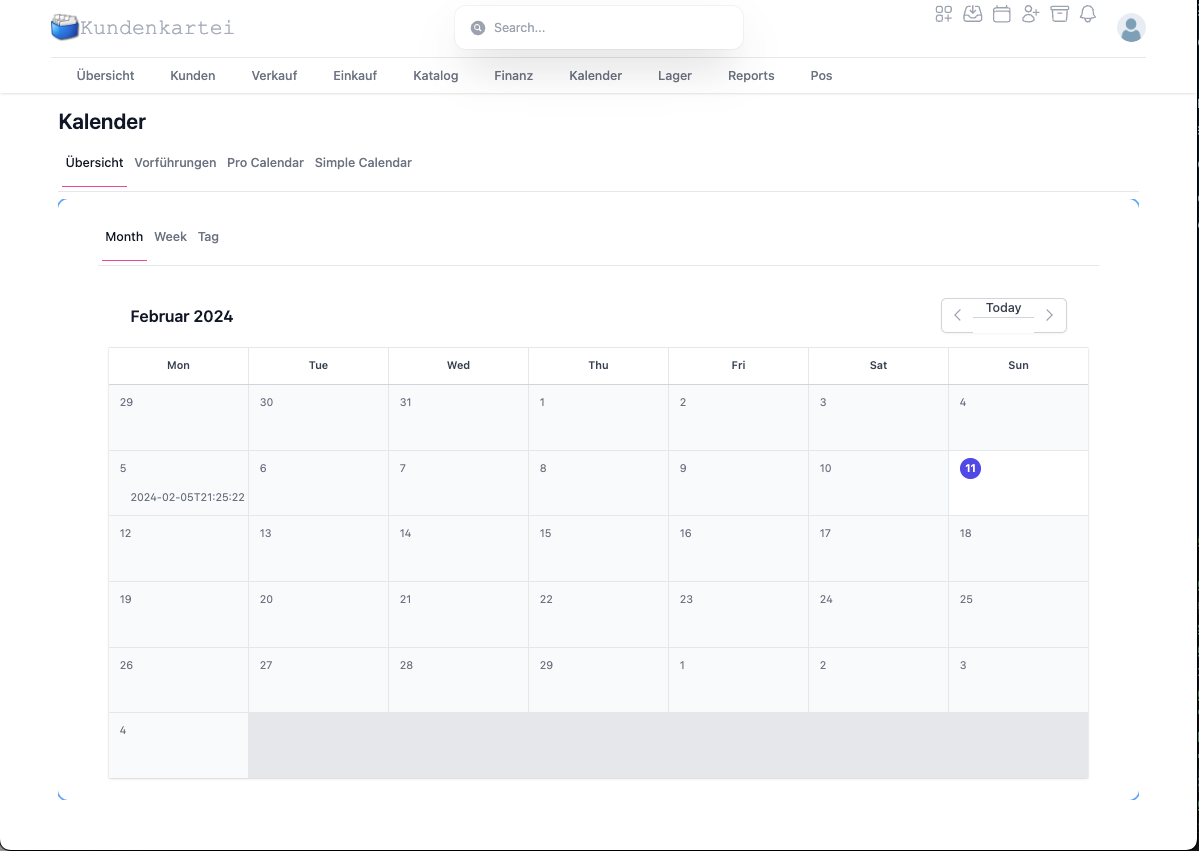
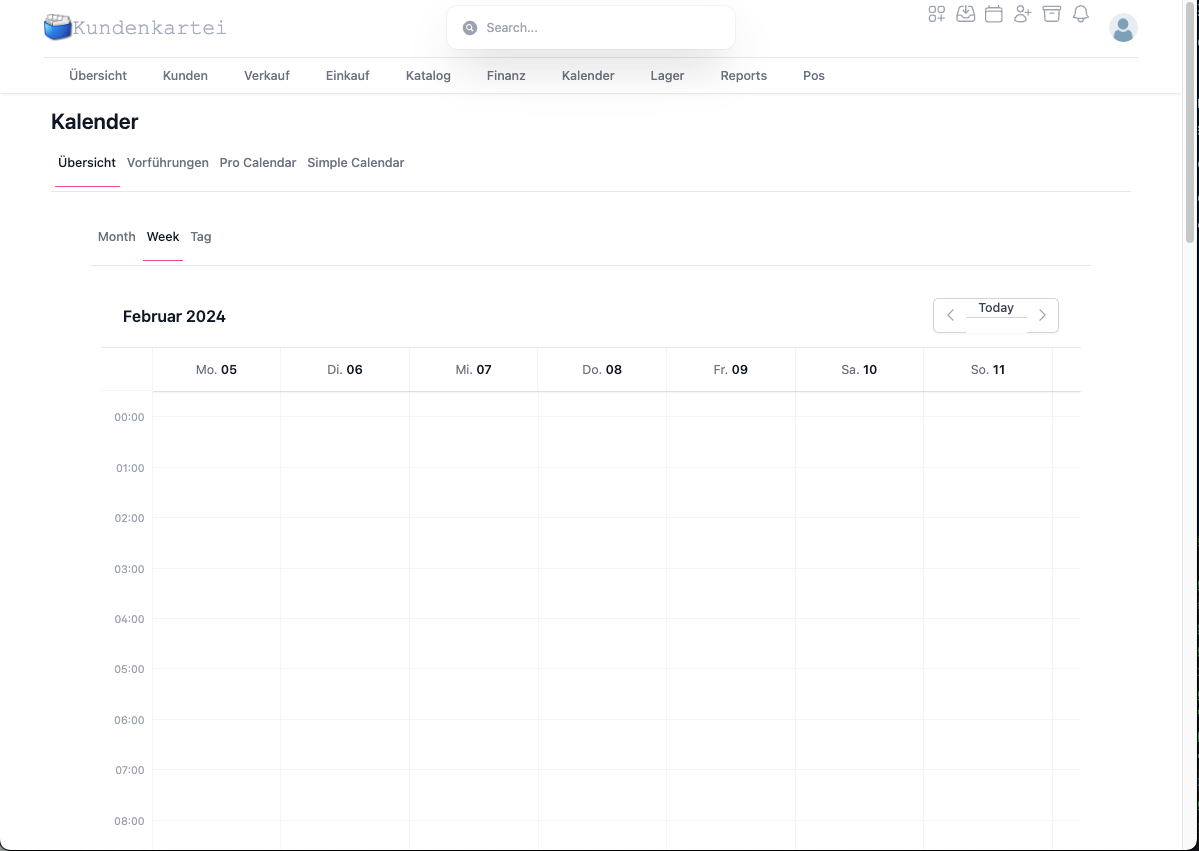
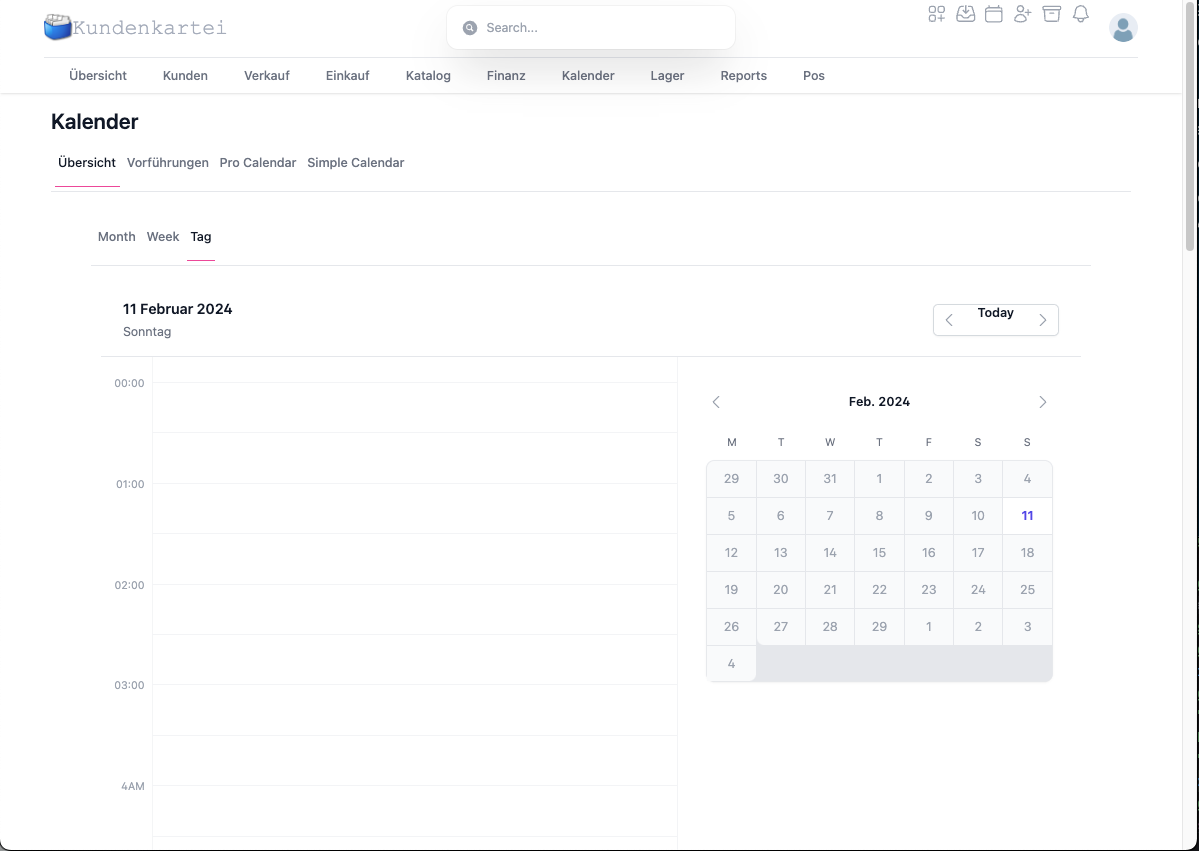
- Switch between the month, week or day view using the dropdown at the top right
- Drag & drop: move appointments or adjust the duration at the edges
- Multi-day bookings appear as a continuous bar
 :::
:::
::: tab Go (mobile)
- Swipe up/down with two fingers to switch between views
- Long-press to start drag & drop
- The day view shows a preview of the next day at the top
:::
Tip: a double-click (web) or double-tap (Go) on an empty row opens the dialogue for a new appointment directly.
📋 Agenda view
In the agenda view, all appointments are shown chronologically – ideal for a daily or weekly overview.
2️⃣ Configuring reminders ⏰
| Type | Trigger | Channel |
|---|---|---|
| Pop-up | 0 minutes before the appointment | In-app (browser/app) |
| Push notification | 5–60 min. before | Mobile device / desktop |
| E‑mail | 1 day before | The primary user address |
- Default: 15 minutes before the appointment (pop-up + push)
- Can be adjusted under: Settings → Calendar → Default reminder
Note: for particularly important appointments, an additional e‑mail reminder the day before is worthwhile.
3️⃣ Creating and editing appointments ✏️
📌 3.1 A quick appointment
- Click or tap an empty time cell
- Enter a title, choose a duration
- Save – done
Optional: add a customer or participants.
📝 3.2 Detail view
| Tab | Content |
|---|---|
| General | Title, location, description |
| Participants | Customer, status (e.g. confirmed) |
| Reminder | One or several reminders |
| Repeat | Daily / weekly / monthly … |
Caution: series appointments (recurring) can only be changed in the web version. In the Go app, individual occurrences can be edited.
↔️ 3.3 Drag & drop
- Moving: grab the appointment and drag it to a new time
- Adjusting the duration: drag the top/bottom edge
- Series appointments: when moving, pay attention to the “This event only” or “Series” choice
4️⃣ Managing resources and calendars
- Display several calendars at the same time (e.g. staff, rooms)
- Each calendar gets its own colour
- Optional: enable conflict detection to avoid double bookings
- Control visibility using the checkboxes (only show the relevant resources)
Best practice: give resources meaningful names/colours (e.g. “Room A – consultation”, “Lisa – field service”).
5️⃣ Import / export and synchronisation
- Synchronisation with:
- iCal (Apple)
- Outlook
- Google Calendar
- Import of ICS files:
- Menu: Settings → Import / Export
- Export as a PDF or ICS file
Tip: with bidirectional synchronisation, a delay of a few minutes can occur. For critical appointments, check the synchronisation history.
✅ Best practices
- Always store the customer/participant for customer appointments (a direct assignment)
- Set the default reminder for the whole project, with individual deviations per appointment
- Use series appointments sparingly and set clear end dates
- “Tidy up” the calendar regularly (hide/archive expired resources)
❓ Frequently asked questions (FAQ)
An appointment appears twice – why?
- Check whether the appointment was synchronised more than once from external calendars
- Deactivate individual calendar sources as a test and reload the view
Reminders do not arrive – why?
- Allow browser notifications/push on the device
- In the appointment settings, check whether the reminder time is set
- Allow the e‑mail sender in the spam filter
The series appointment cannot be changed on mobile – what should I do?
- Open the series in the web version and make the change there
- Individual occurrences can be adjusted on mobile
Appointments are time-shifted after synchronisation – why?
- Check the time zone of the account/device (Settings → Time zone)
- Configure the same time zone in the external calendars