Order list
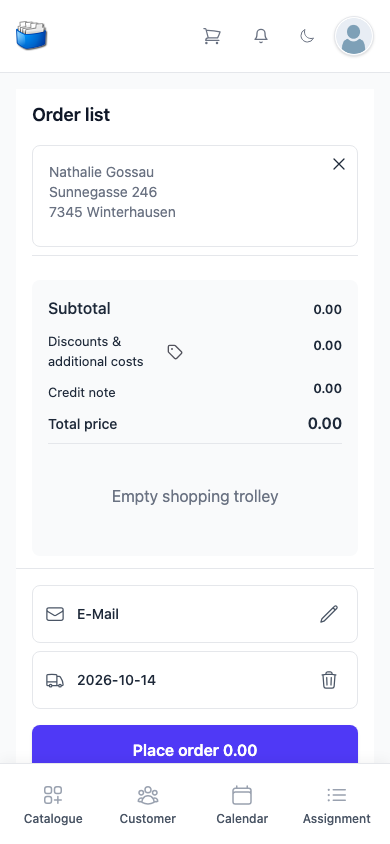
The Order list is the shopping cart of Kundenkartei Go. Whatever you add to the cart in the catalogue gathers here until you complete the order. You open it with the shopping cart at the top of the header; the number beside it tells you how many lines it holds.
No money is taken here
The order list records an order and its delivery. It settles nothing and accepts no payment. You create an invoice later from the order – under Assignment or in the web application.
What is on the page
At the top the Customer the order is for. If none has been chosen yet, the field Select customer… appears there: type the name and choose her from the list. Once she is chosen, her name and address appear; the X beside them takes her out again. You can also bring the customer here from her own page with Add to cart – see Customers.
Below that the totals: Subtotal, Additional costs, Credit note and Total price. They recalculate as you change quantities.
You record additional costs such as postage directly here: the label symbol beside Additional costs expands the selection, and you enter the amount at the matching line.
Below that the lines: description, article number, for a set its contents, the price and, in brackets, the catalogue price. You type the quantity into the number field – at least 1. The waste bin takes a line back out. Clear cart removes all lines and takes you back to the catalogue. If nothing is in it, it says Empty shopping trolley.
Closing
At the very bottom are two details and – as soon as a customer is chosen – a button:
| Field | What for |
|---|---|
| where the order is sent by e-mail. The pencil opens a window for recipient and sender. If the field stays empty, nothing is sent | |
| Delivery date | when delivery takes place; set to today when you open the page |
| Place order | closes and creates the order together with its delivery note. The button shows the amount of the order |
The waste bin beside an entered e-mail address or beside the delivery date deletes the detail once you have agreed under Confirm deletion with Delete.
If the delivery date is missing, the field turns yellow, Delivery date required appears below it, and Place order cannot be tapped. Set the date with the pencil and you can carry on.
Without a customer, Place order does not appear at all. Choose the customer at the top first.
After closing, the order list is empty and you are back in the catalogue. You find the order under Assignment.
When something goes wrong
| Message | What it means |
|---|---|
| The order was not saved. The cart has been kept, please place the order again. | Nothing has been saved. Customer and lines stay as they are; tap Place order again. |
| The order has been saved, but the delivery note has not. Please record the delivery in the order. | The order exists, the order list has been cleared. Open the order under Assignment and create the delivery there. |
Next
- Catalogue — where the articles come from
- Customers — putting the customer into the order
- Assignment — the completed orders