Assignment
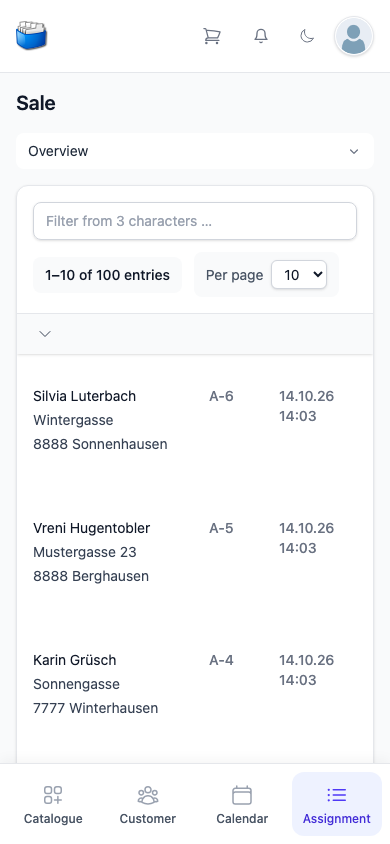
Under Assignment you find the orders you have recorded – as the Sale list. From here you open an order, see where it stands and create a delivery or an invoice.
You do not record a new order here but in the order list: add articles from the catalogue, choose the customer, Place order.
✅ Requirements
- Sign-in with your credentials
- Permission for orders
- Internet connection
Tip: put Kundenkartei Go on your home screen to start it like an app – explained step by step under Save as an app.
📋 The Sale list
At the top is the selection Overview – currently the only list. It shows your sales orders – a hundred at most –, the most recently changed first.
Each row shows:
- the customer with her address
- the document number
- date and time of the last change
The arrow above the first row reverses the order.
🔎 Filtering and paging
- Filter from 3 characters … – from the third character on, only the orders containing the text remain, such as a name, a town or a document number. With fewer characters a hint reminds you.
- Below it you see which entries you are looking at, for example “1–10 of 100 entries”.
- Per page sets how many orders a page shows: 10, 25 or 50.
- With Back and Next at the end of the list you page through.
🧾 Opening an order
Tapping the row opens the order. There you find:
- at the top the document number and the Customer button, which takes you to the customer’s page
- Progress – how far the order has got
- Documents and items – the order’s documents with their lines
- Activity – history and notes
In addition, if the state of the order allows it, the Create delivery and Create invoice buttons.
❓ Frequently asked questions (FAQ)
I cannot find an order.
- Enter at least three characters in the filter, for example part of the name.
- The list shows a hundred orders at most. You find all orders in the web application under Sale.
Where do I record a new order?
- In the order list. As soon as you tap Place order there, the order appears in this list.
I see no buttons for delivery or invoice.
- They only appear when the state of the order allows the next step.