✨ Welcome to Kundenkartei Cloud
On this page you will learn how to register, optionally set up a passkey, activate your licence and get started with or without a data backup.
Note: in the early phases, access may be enabled gradually. If you are interested, write to support@kundenkartei.ch (mentioning “Activation” and your Déesse number).
✅ Requirements
- A valid e‑mail address
- Access to your e‑mail (to confirm with a passcode)
- Optional: the licence e‑mail for the activation
- Optional: a data backup from Kundenkartei 5 (myDéesse), if you want to transfer existing data
✍️ Registering
- Open the login page: https://kundenkartei.app
- Click “You do not have an account yet”
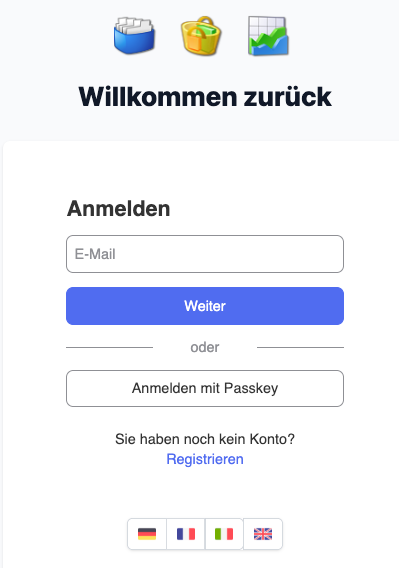
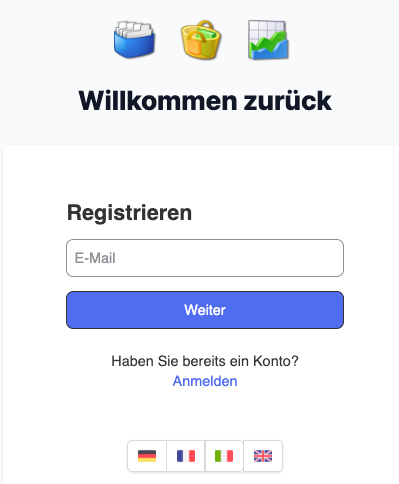
- Now enter the e‑mail address at which you will receive a mail and which you will then need to log in, and click “Next”
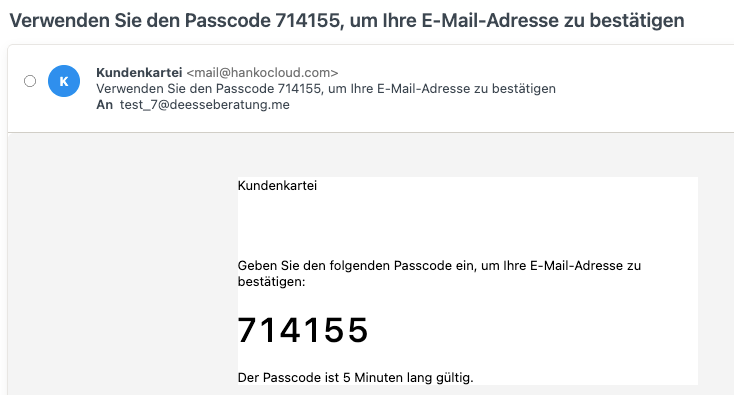
- Take the passcode from your mailbox
- Check the spam/junk folder if necessary
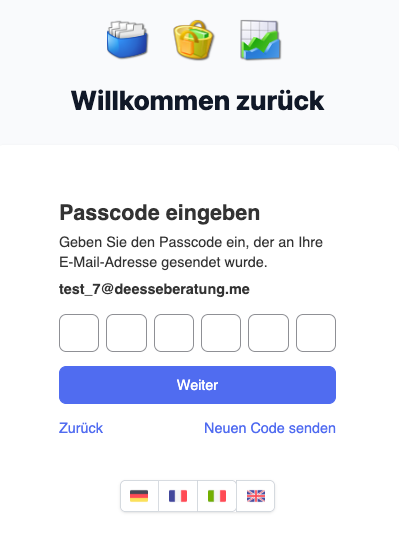
- Enter the passcode and confirm it
- Optional: create a passkey (a convenient and secure login via the device/biometrics)
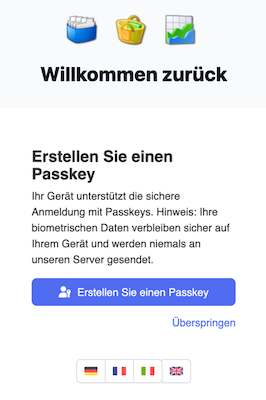
After successful registration you can log in.
🔐 Logging in
- Use your e‑mail/password or your passkey (if it is set up)
- If there are problems: enable the password display, reset the password and try again
🎟️ Activating the licence
If you have received a licence, you can activate it in the next step.
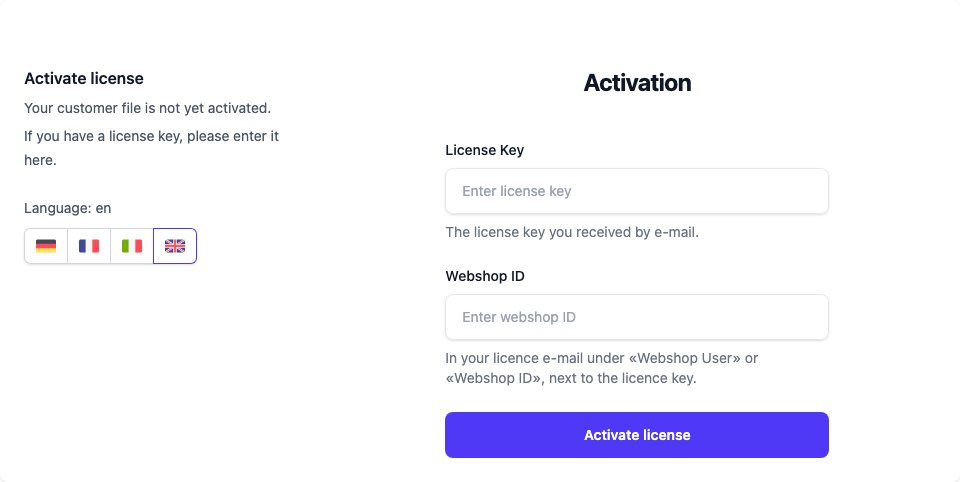
- Licence key: in your licence e-mail under “Lizenzschlüssel” / “licence key”.
- Webshop ID: in the same e-mail, just below, under “Webshop User” or “Webshop ID”. It is not your Déesse customer number.
- Confirm with Activate licence.
- If “This licence is already assigned to another account” appears, you signed in with a different e-mail address than for the activation. Sign in with the first address or contact support.
- After the activation, the enabled modules are available to you
📤 Starting with a data backup (myDéesse)
If you are moving from the local Kundenkartei 5 (myDéesse), you can import a data backup.
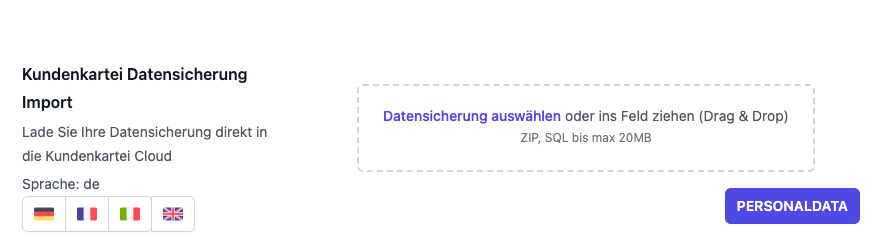
A short outline:
- Create a local data backup (see the notes in the Kundenkartei 5 manual)
- Upload the backup in the cloud under Settings → Import
- Wait for the processing (a few minutes, depending on the volume)
Detailed instructions:
🆕 Starting without a data backup
Would you rather start empty and create the data from scratch?
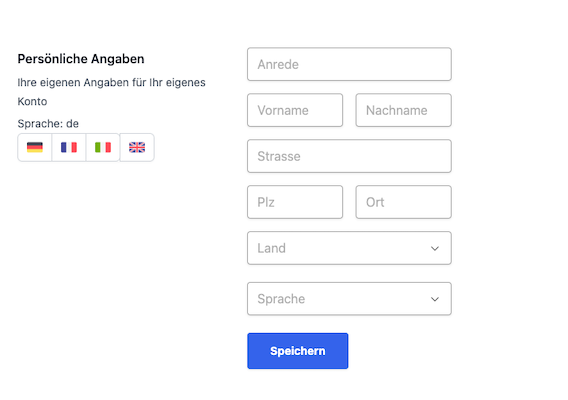
- Check your profile, create your first customers/items, record orders
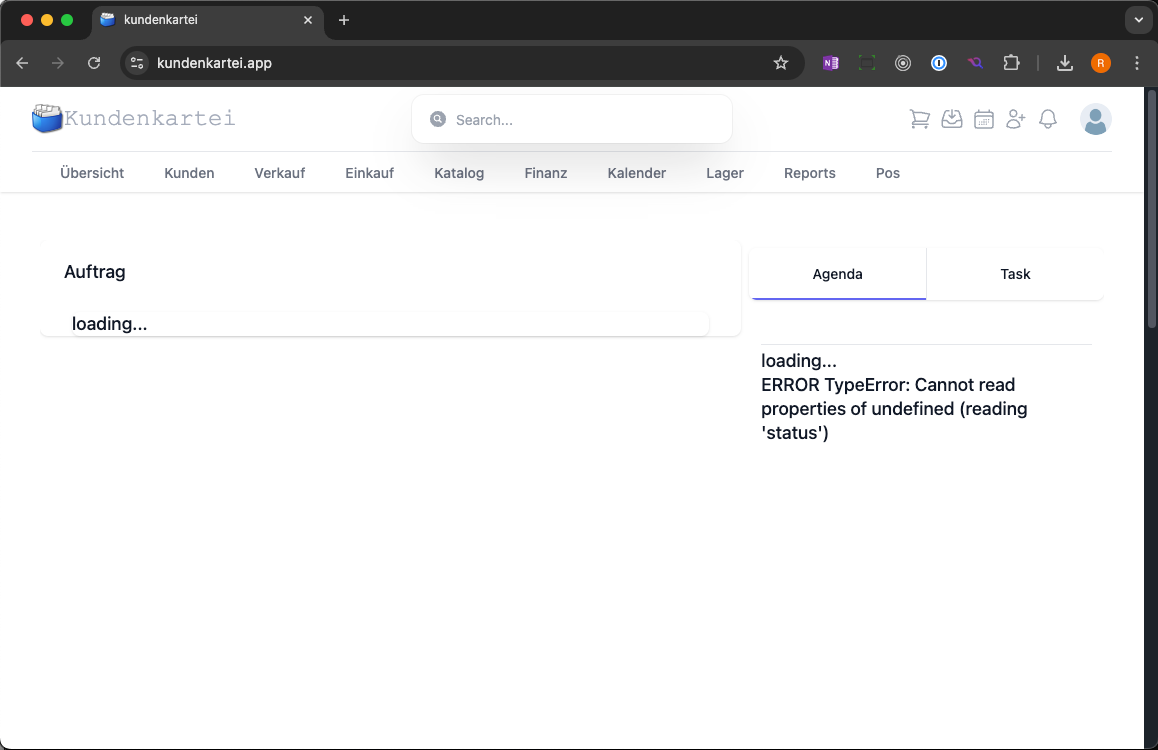
- After the start, the database may appear empty at first – that is normal
🧩 Tips and best practices
- Use a passkey (where possible) – a faster and more secure login
- Create the data backup as recently as possible before the import
- After the import, check important records on a sample basis
- Set up SMTP/the sender before you send e‑mails to customers
🧯 Troubleshooting
No e‑mail received (passcode)
- Check the e‑mail address, check spam/junk
- Wait a few minutes and request it again
The passcode is invalid
- Request a new one and use the current code
- Enter the passcode promptly (its validity is limited)
Cannot log in
- Enable the password display, rule out typing errors
- Reset the password and try again
- Try another browser, clear the cache
The licence e‑mail is missing
- Check your mailbox/spam
- Contact support (see below)
The import is taking a while / data is missing
- Wait 10–15 minutes, reload the page or log in again
- Follow the migration instructions
- If there are discrepancies: send the time, the file name/size and examples to support
📫 Support
- E‑mail: support@kundenkartei.ch
- Please state:
- A short description of the problem
- The device/browser and the time
- Relevant screenshots
- For import topics: the time, the file name/size, sample records